
How to Use Canned Responses
Save your most-used replies as shortcuts you can insert instantly with a slash command.
Beginner 3 min read
Tutorial video coming soon
What You'll Learn
In this tutorial you'll learn:
- Create a canned response with a shortcode
- Insert one instantly from the composer
Step-by-Step Guide
1
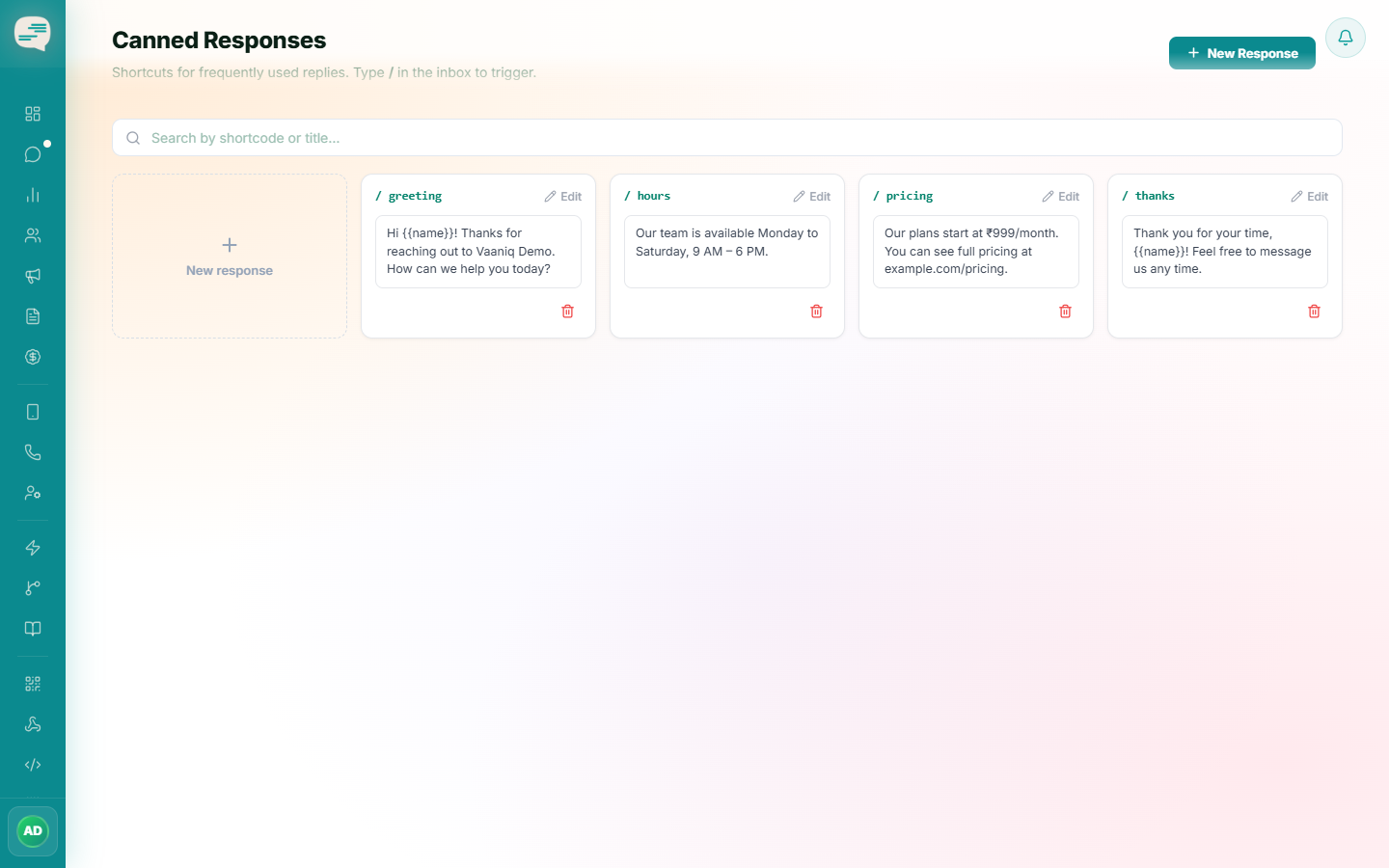
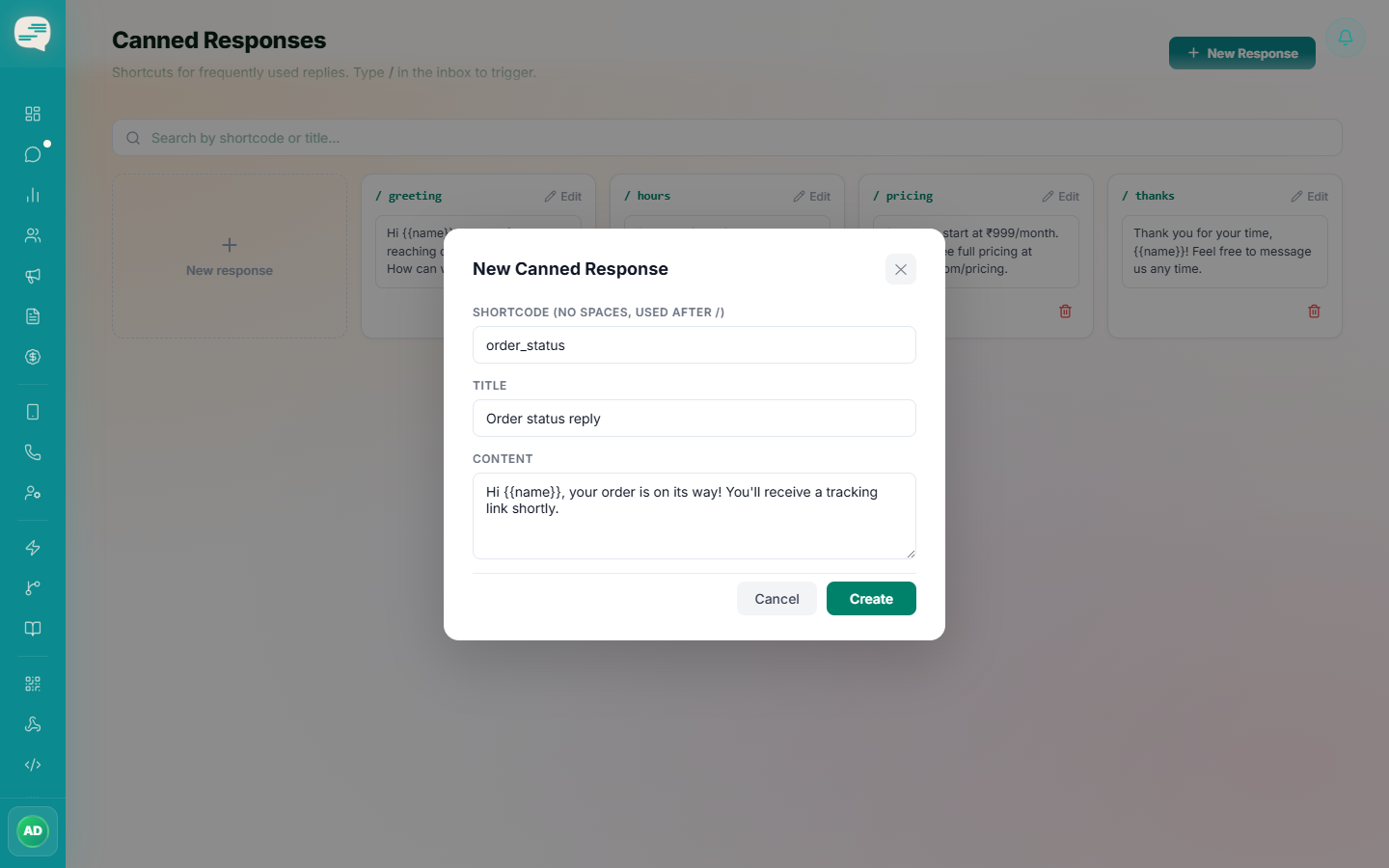
Create a canned response
Dashboard → Settings → Canned Responses → New Response
Give it a shortcode (e.g. greeting), a title, and the message content. You can include the customer's name as a variable so it's personalised automatically when inserted.
2
Insert it in a conversation
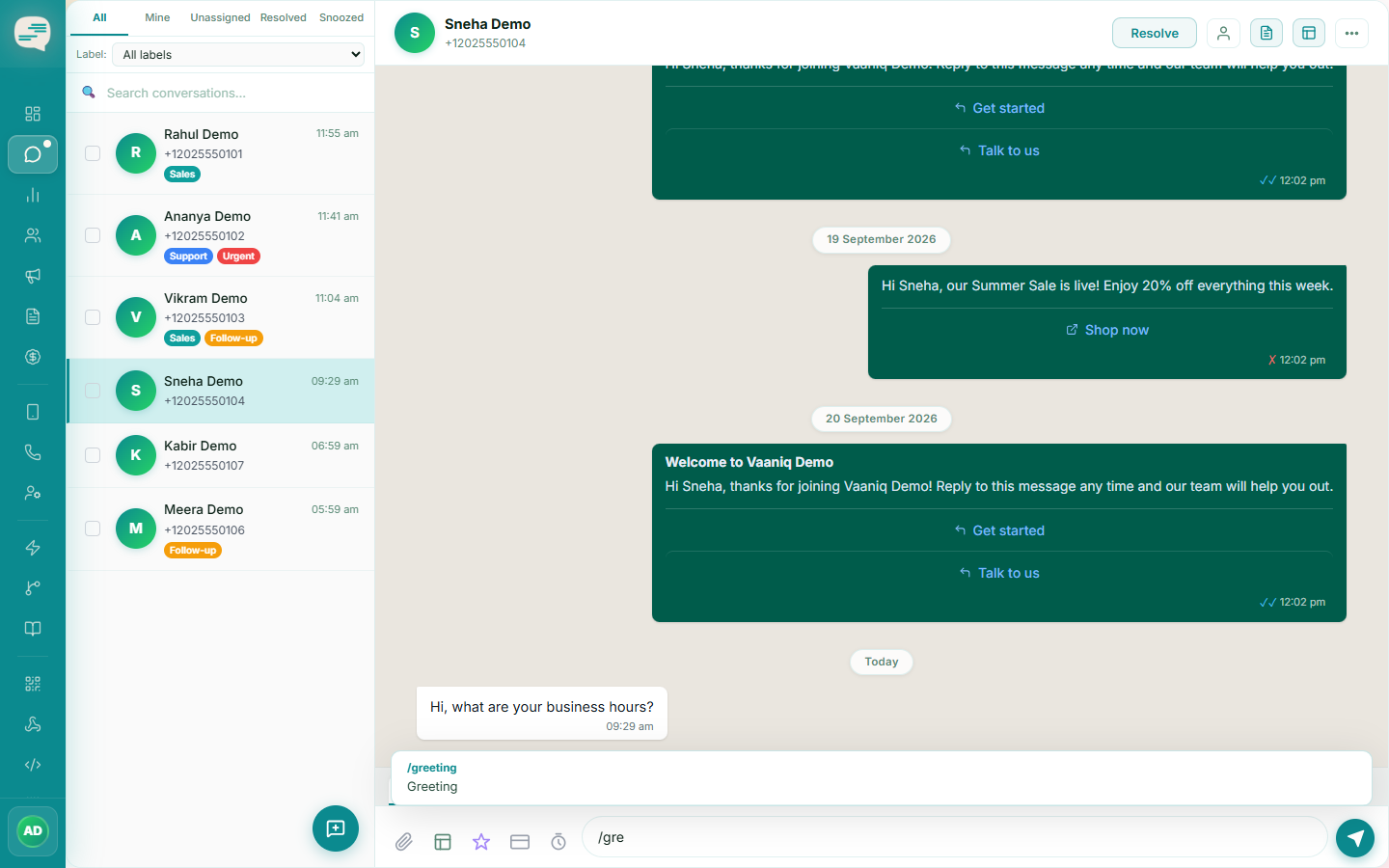
In any conversation's composer, type / followed by the shortcode — matching responses filter live as you type — then select one to insert the full message.