

How to Manage Business Hours & Auto-Replies
Define your team's working hours and set an automatic reply for messages that arrive outside them.
Intermediate 4 min read
Tutorial video coming soon
What You'll Learn
In this tutorial you'll learn:
- Set open and close times for each day of the week
- Write an off-hours auto-reply message
Step-by-Step Guide
1
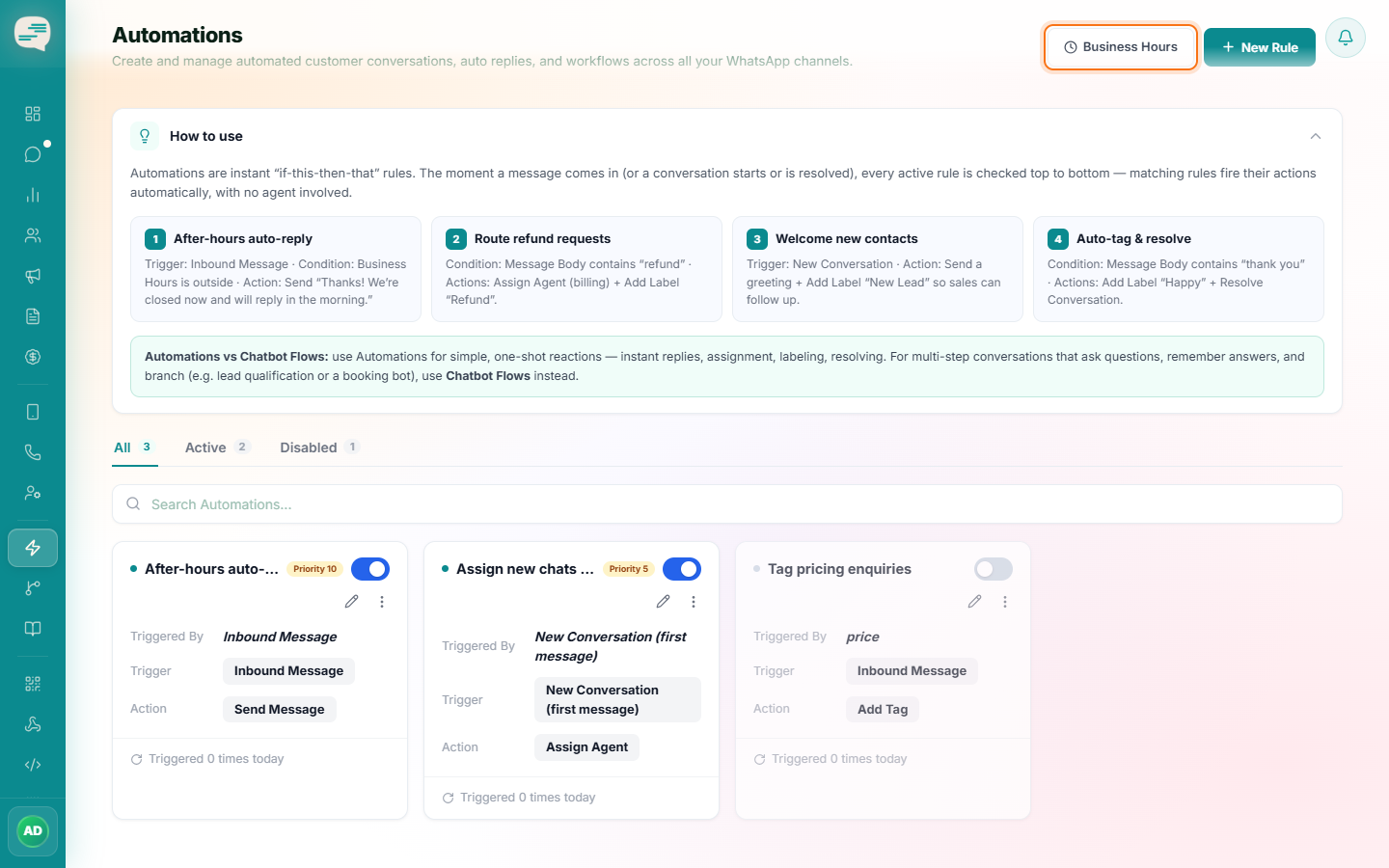
Open Business Hours
Dashboard → Automations → Business Hours
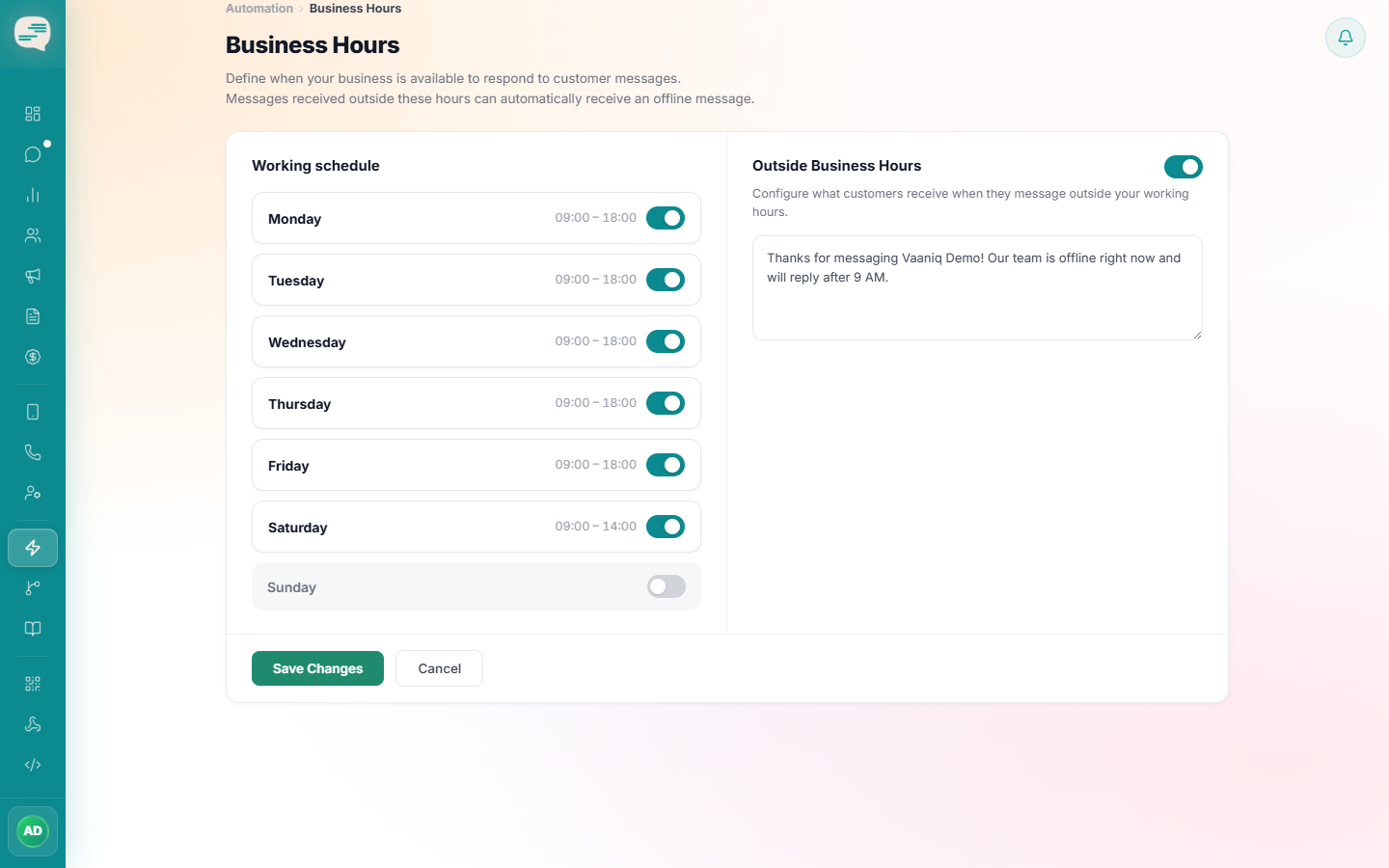
Toggle each day of the week on or off, and set an open and close time for the days you're working.
2
Set your off-hours reply
Write the message customers receive when they message outside your set hours, and save. This is applied automatically the moment it's saved — no separate activation step needed.
Tip
The Business Hours condition is also available inside the Chatbot Flow builder, so a flow can branch differently when your team is offline.