
How to Add Internal Notes to Conversations
Leave notes for your team inside a conversation thread that the customer never sees.
Beginner 2 min read
Tutorial video coming soon
What You'll Learn
In this tutorial you'll learn:
- Switch the composer into note mode
- Understand who can see an internal note
Step-by-Step Guide
1
Switch to note mode
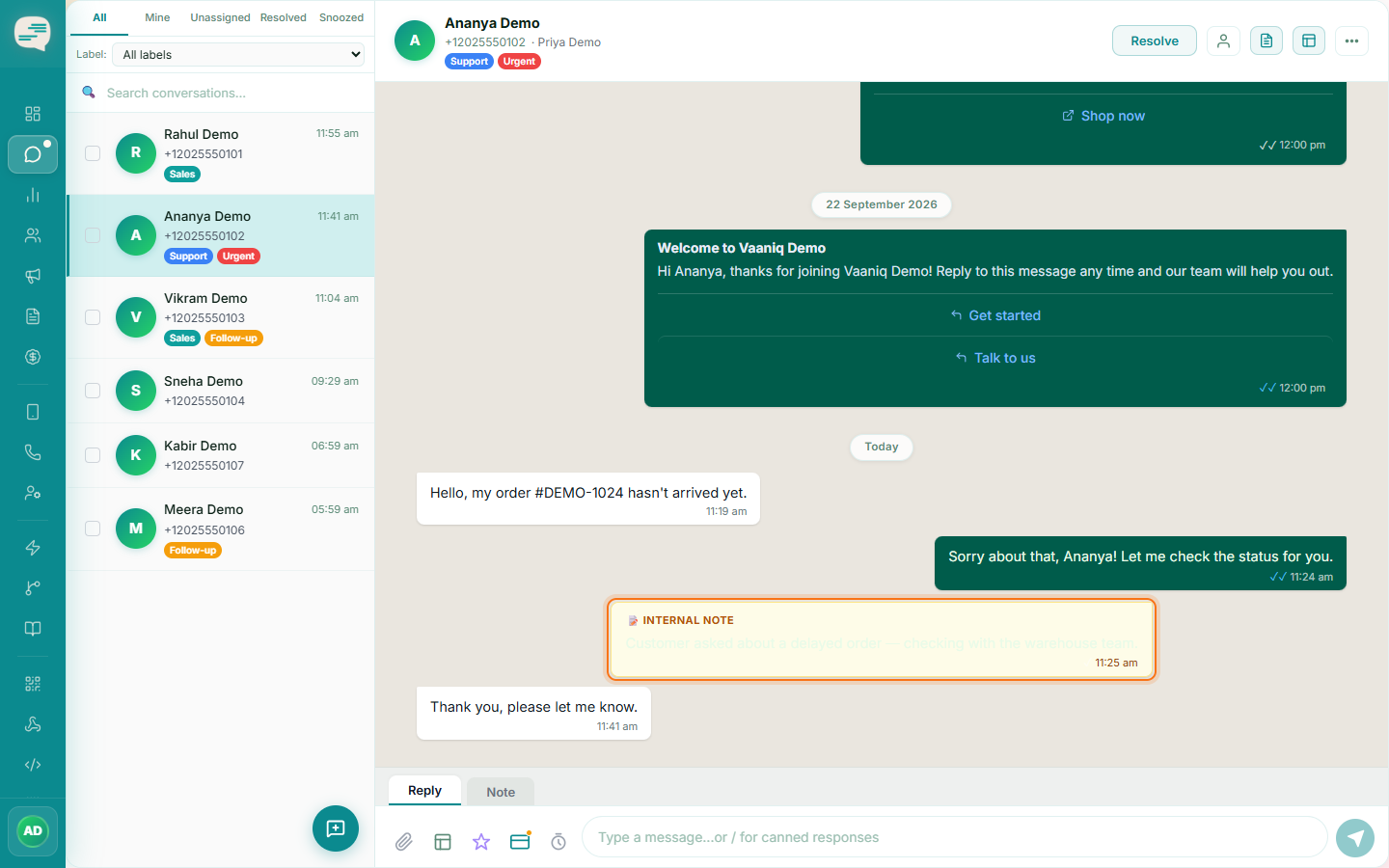
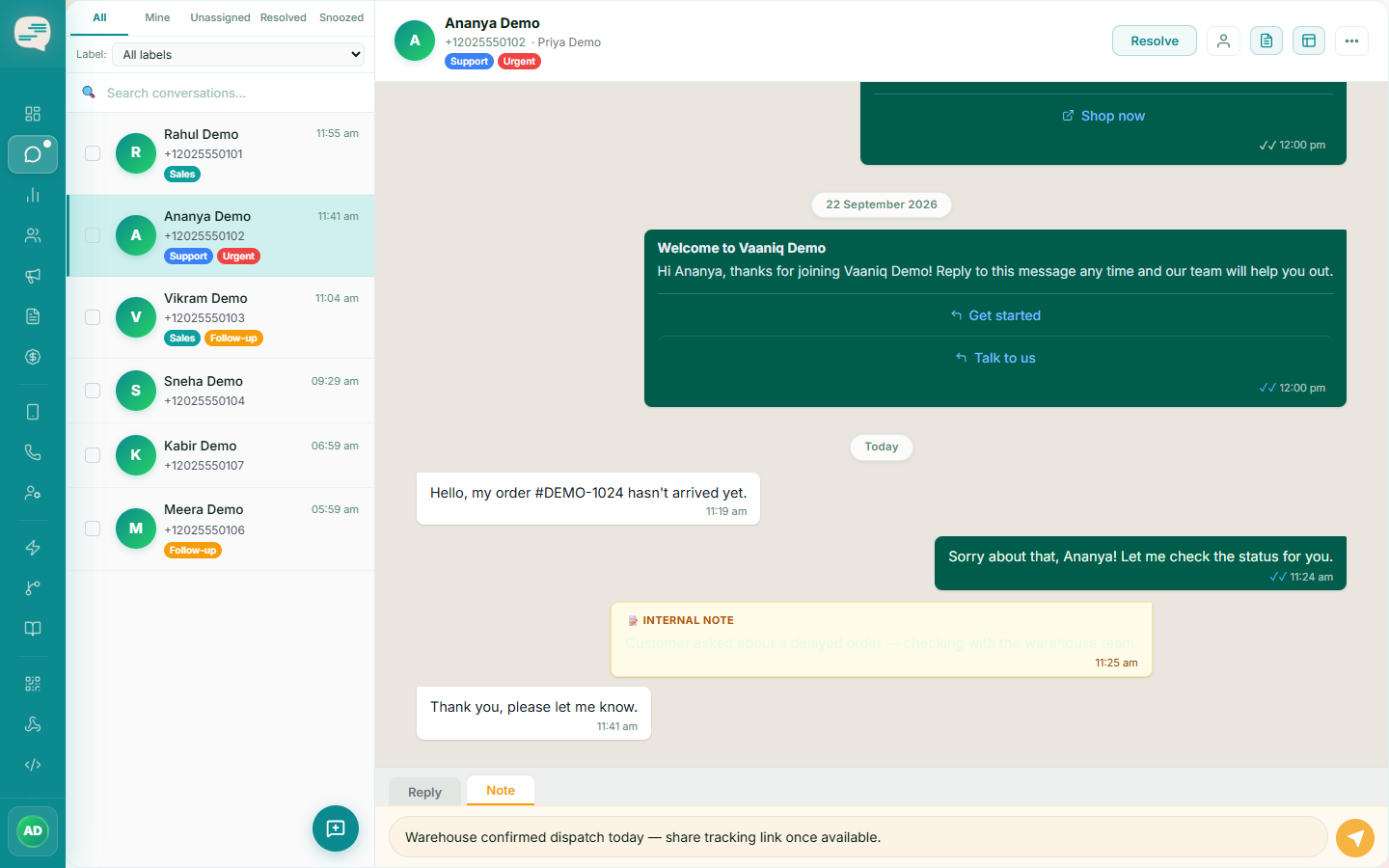
In the conversation composer, toggle note mode on — the composer switches to a distinct style so you can't confuse a note with a real reply.
2
Write and send the note
Type your note and send it. It appears in the thread with a clear "Internal note" badge, visible only to your team, and shows up live for any other agent viewing the same conversation.