

How to Assign Conversations to Team Members
Claim a conversation yourself or hand it to a teammate so ownership is always clear.
Beginner 2 min read
Tutorial video coming soon
What You'll Learn
In this tutorial you'll learn:
- Claim an unassigned conversation
- Reassign a conversation to a teammate
Prerequisites
Before you start:
- At least one other teammate invited to your workspace, if you want to reassign to someone else
Step-by-Step Guide
1
Open the conversation
Dashboard → Conversations → open a thread
Any agent can self-claim an unassigned conversation.
2
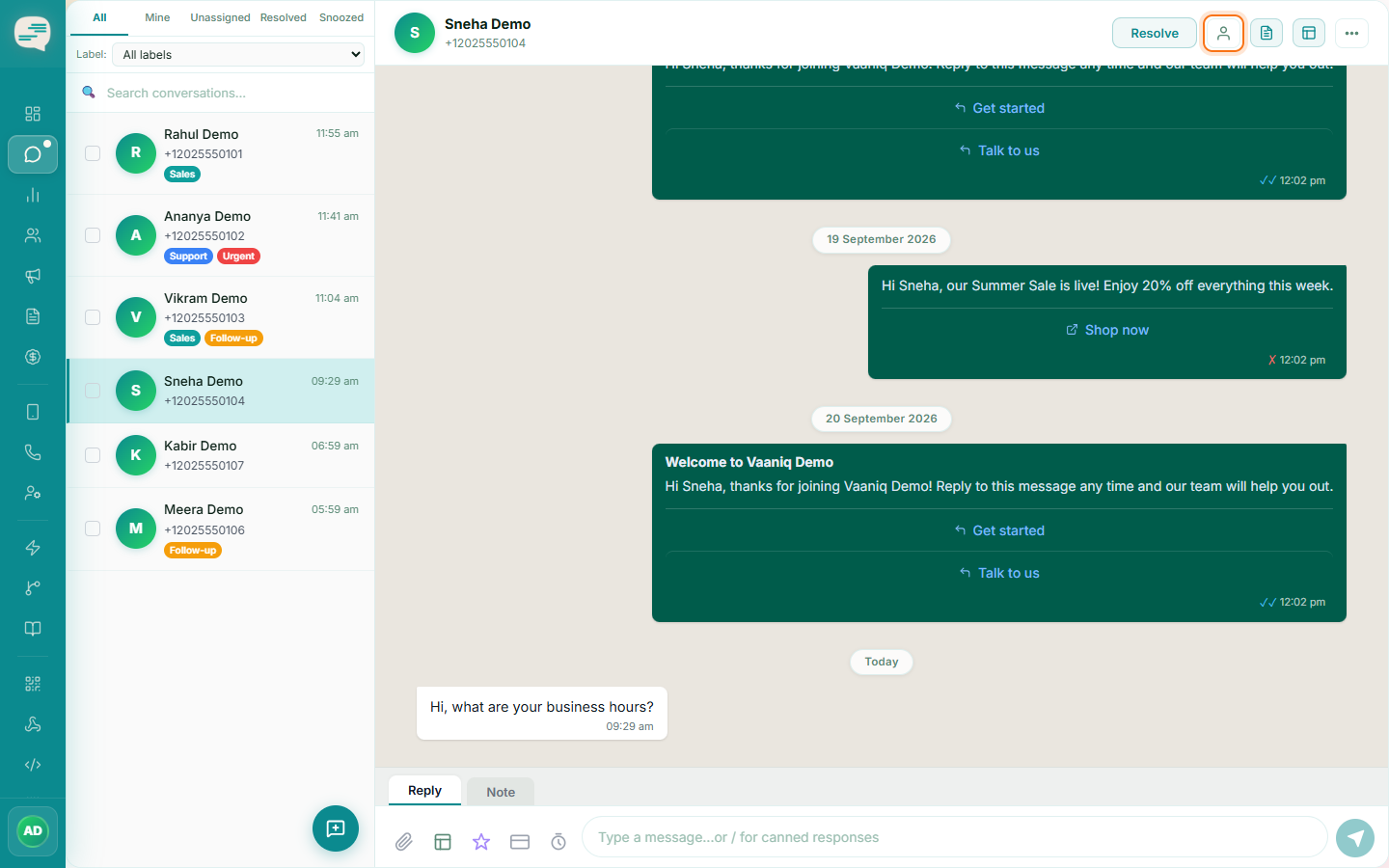
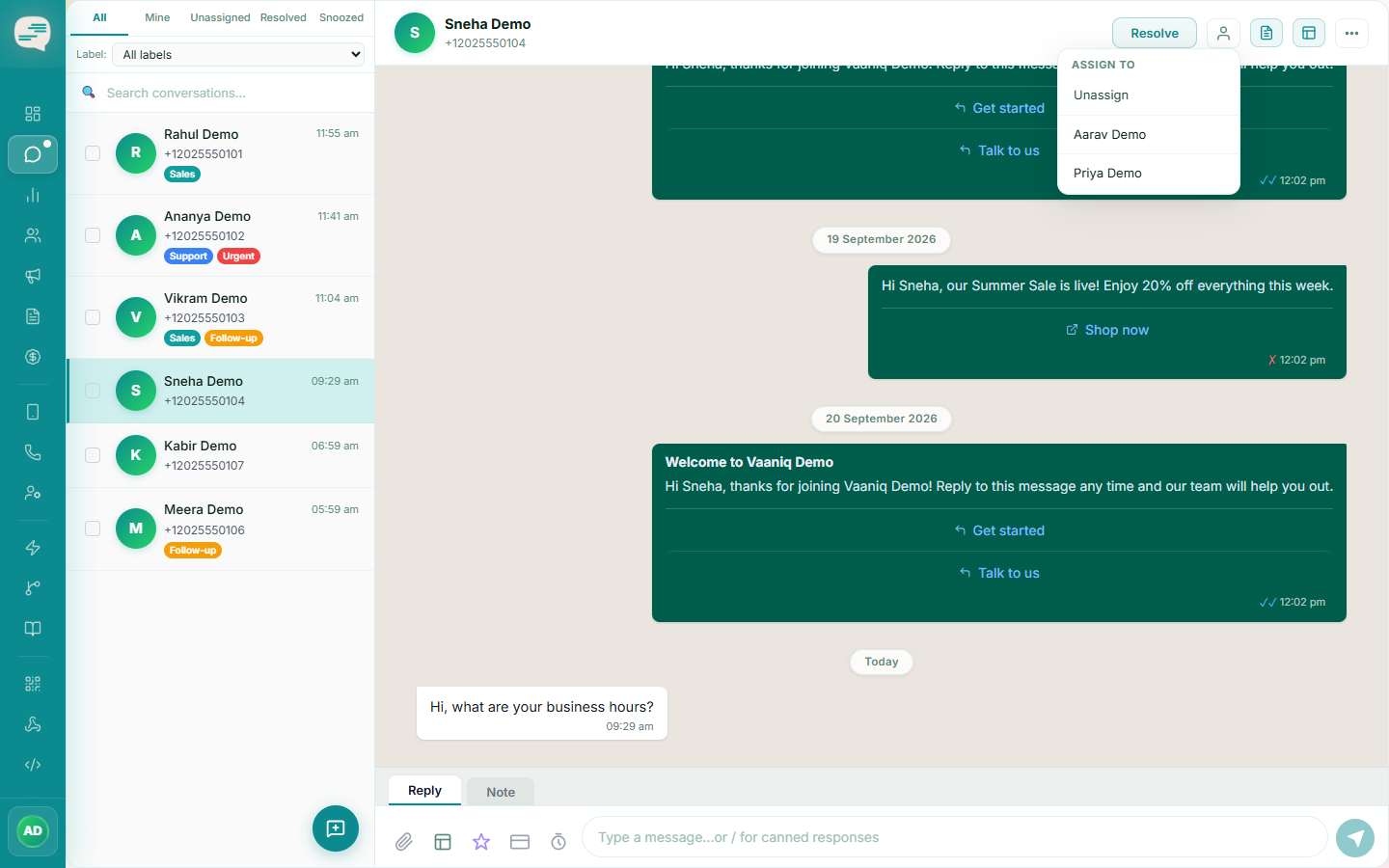
Click Assign
Use the Assign button in the conversation header. Agents can claim conversations for themselves; admins can reassign a conversation to any teammate.
Tip
Automatic load-balanced assignment (assigning new conversations to whichever active agent has the fewest open chats) is available as an Automation rule rather than a standalone inbox setting — see Creating Your First Automation.