
How to Resolve & Reopen Conversations
Mark a conversation as handled, and reopen it later if the customer comes back.
Beginner 2 min read
Tutorial video coming soon
What You'll Learn
In this tutorial you'll learn:
- Resolve a conversation once it's handled
- Reopen a previously resolved conversation
Step-by-Step Guide
1
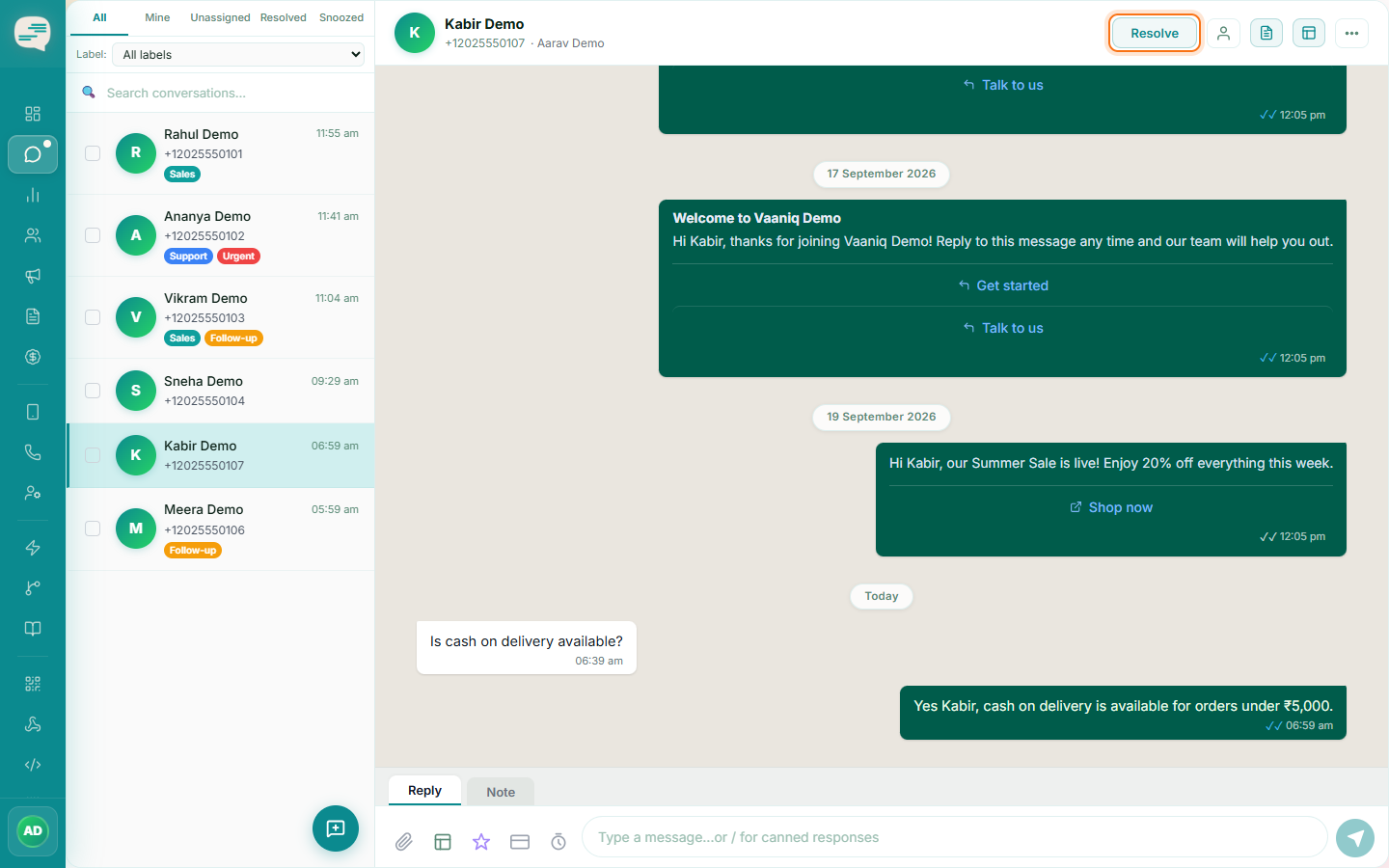
Resolve the conversation
Click Resolve once you've finished handling a chat. A short customer-satisfaction survey is automatically scheduled to send a couple of minutes later.
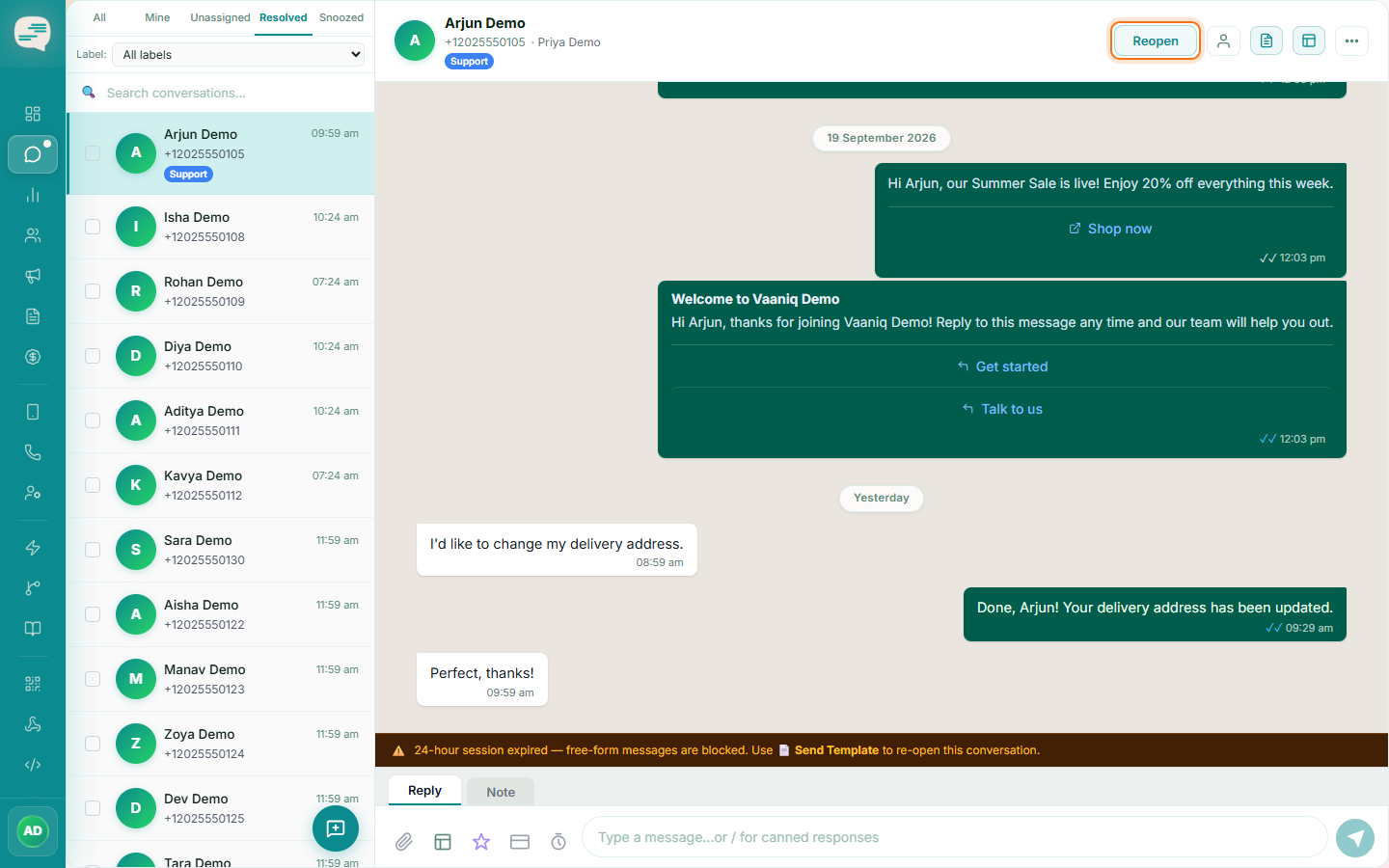
2
Reopen if needed
If the customer messages again or you need to revisit it, click Reopen — this clears the resolved state, resets assignment, and cancels the pending satisfaction survey.