

How to Reply to WhatsApp Customers
Send text replies, insert approved templates, and use AI-suggested responses from the conversation composer.
Beginner 3 min read
Tutorial video coming soon
What You'll Learn
In this tutorial you'll learn:
- Send a free-text reply to an open conversation
- Insert an approved template when needed
- Use an AI-suggested reply
Step-by-Step Guide
1
Open a conversation
Dashboard → Conversations
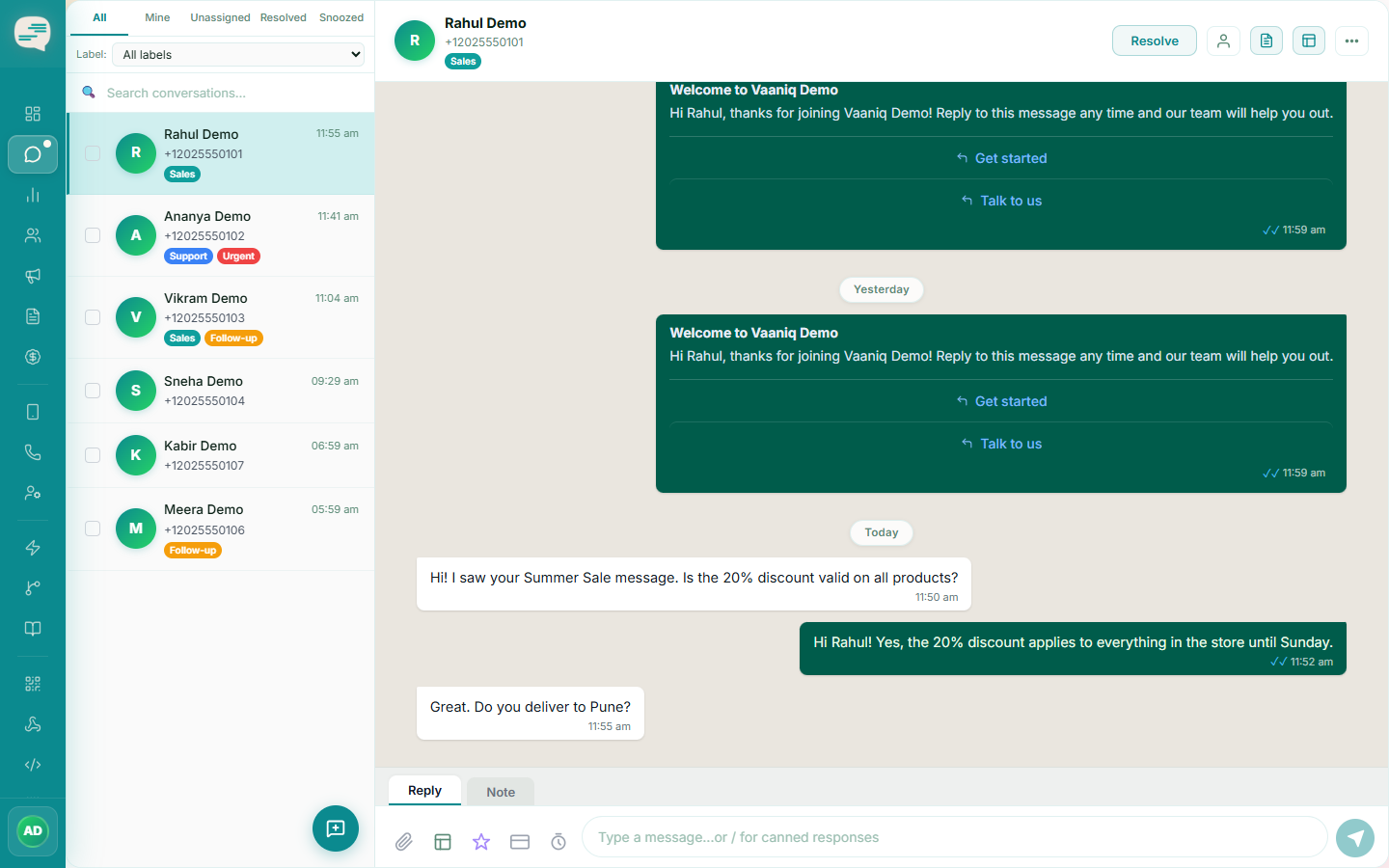
Click any thread in Conversations to open it.
2
Type and send
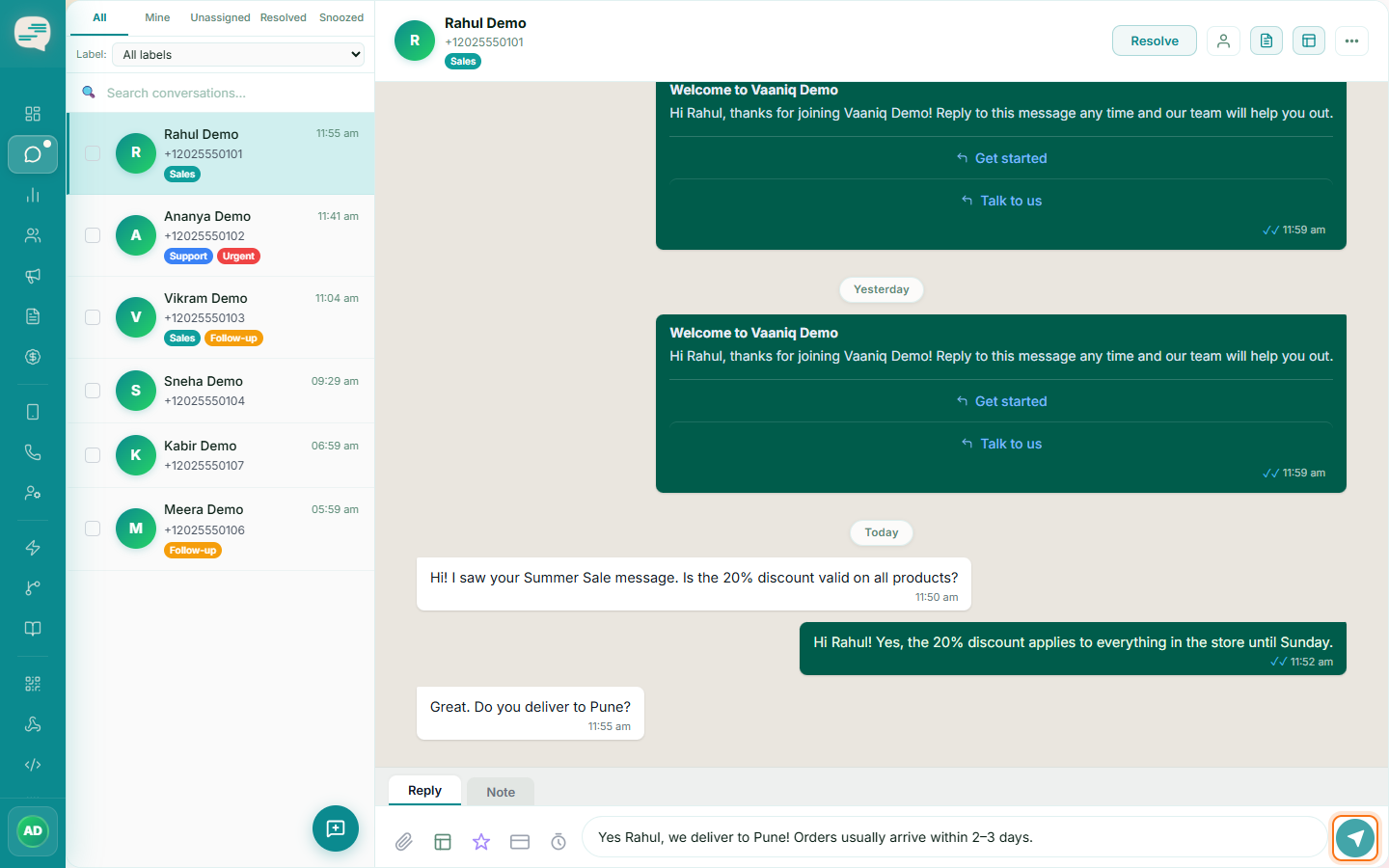
Type your reply in the composer at the bottom and send. Free text works as long as the conversation's 24-hour session window is still open.
3
Use a template when the window has closed
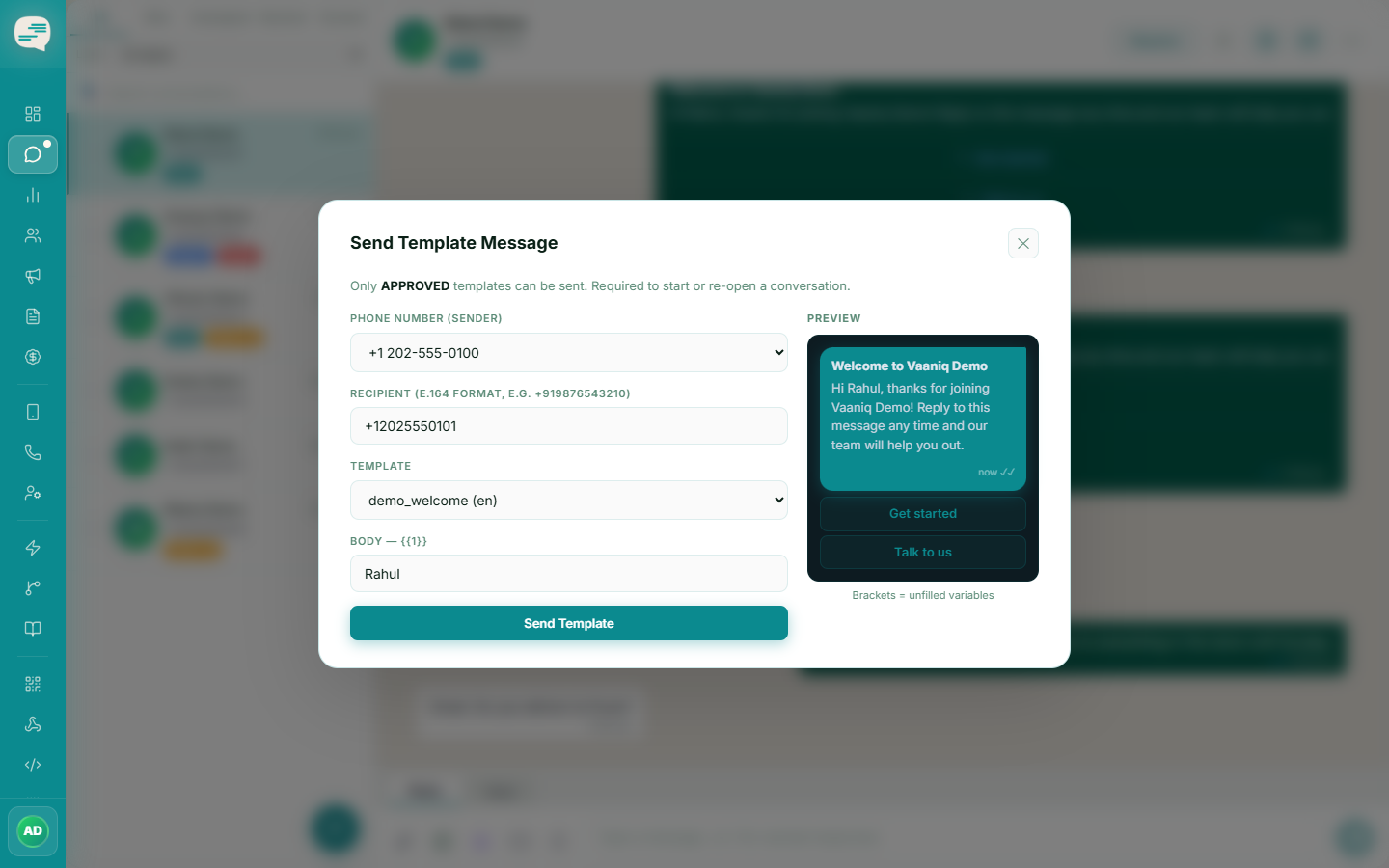
Click the template icon in the composer to pick from your approved template library and send it — this works even outside the 24-hour window.
4
Try an AI-suggested reply
Where available, suggested replies appear above the composer — click one to insert it as a starting draft you can edit before sending.