
How to Fix Rejected WhatsApp Templates
Read Meta's rejection reason, fix the template, and resubmit for review.
Intermediate 3 min read
Tutorial video coming soon
What You'll Learn
In this tutorial you'll learn:
- Find the rejection reason for a template
- Edit and resubmit a rejected template
Step-by-Step Guide
1
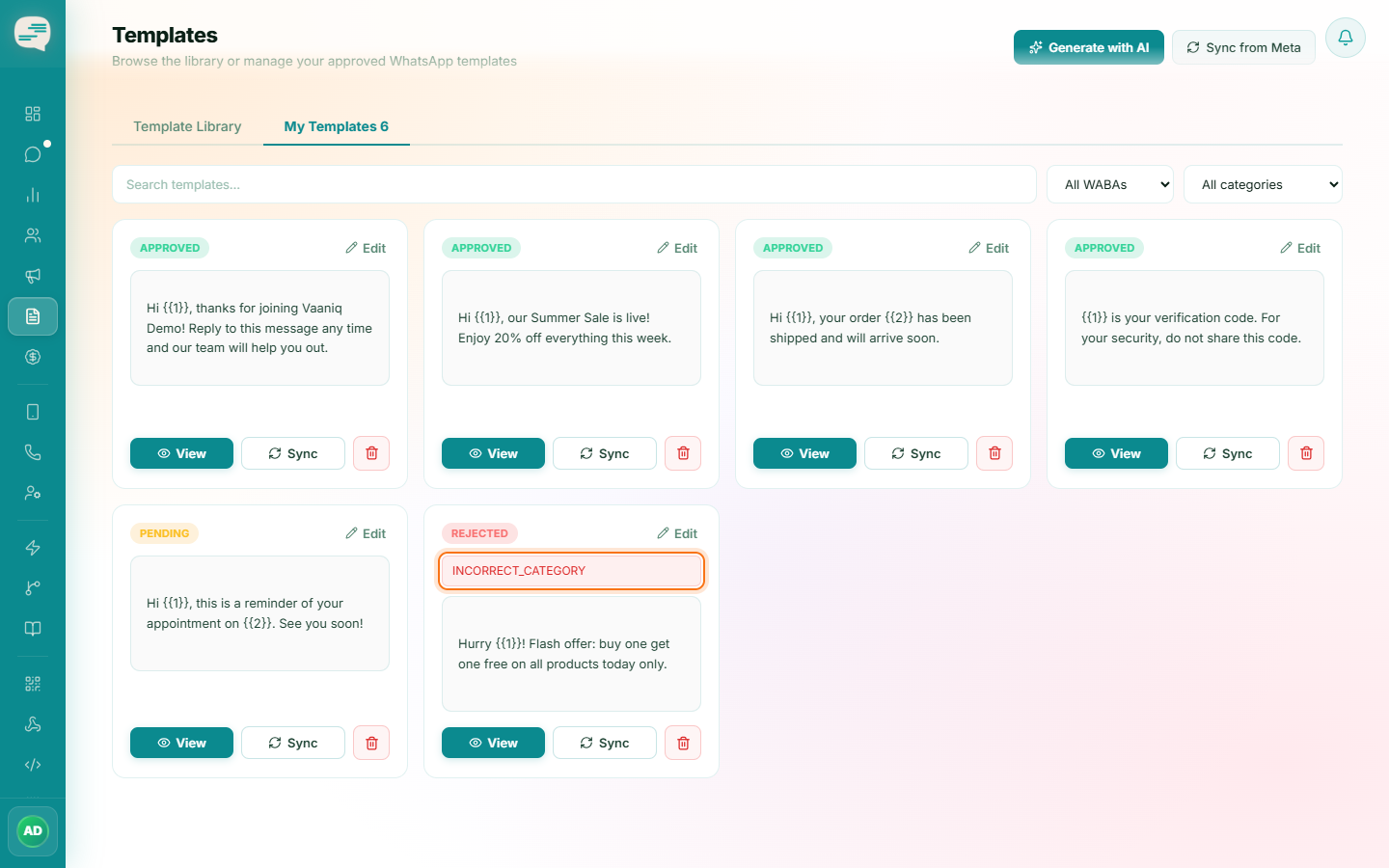
Check the rejection reason
Dashboard → Templates
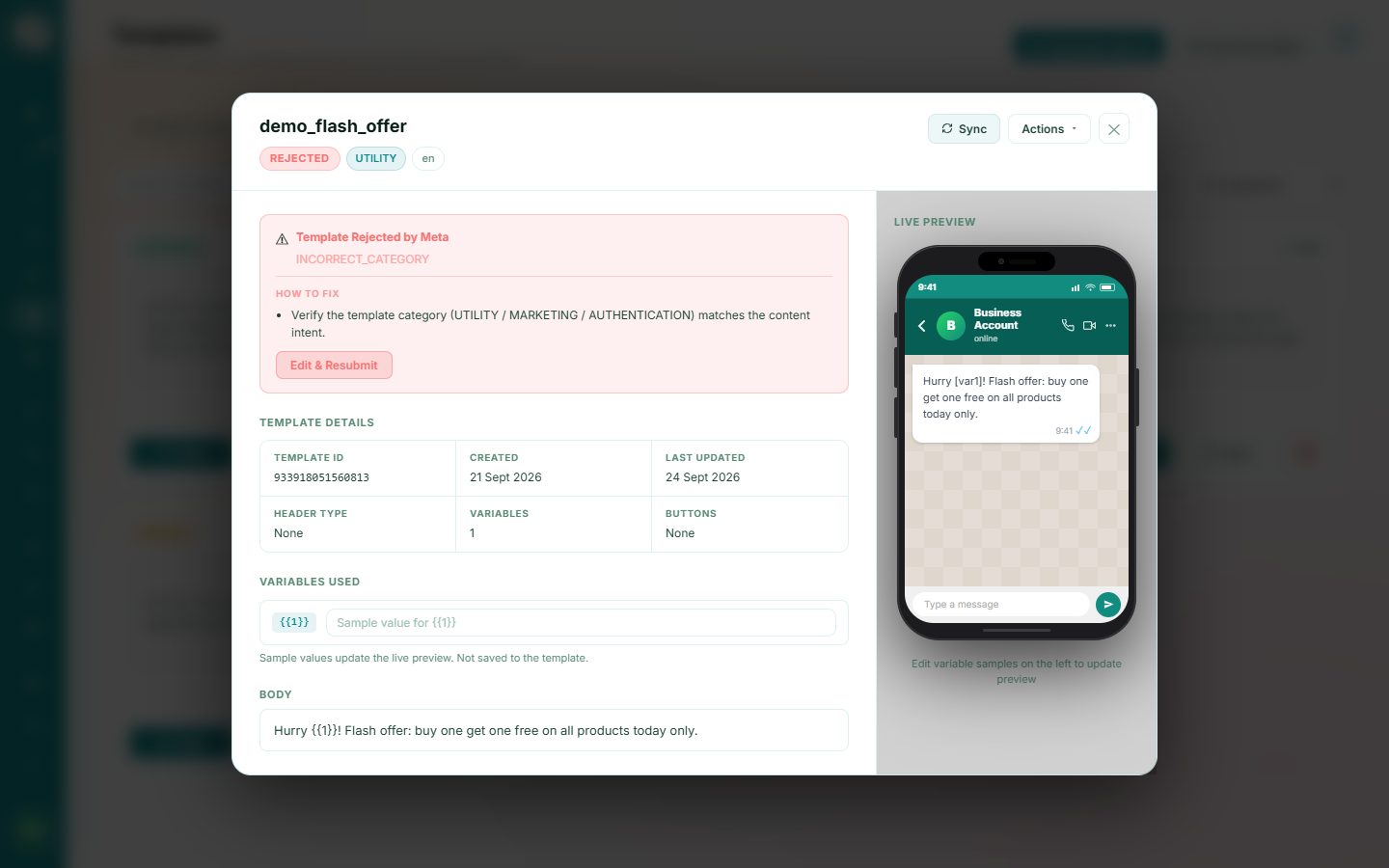
A rejected template shows Meta's own rejection reason directly on the Templates page.
2
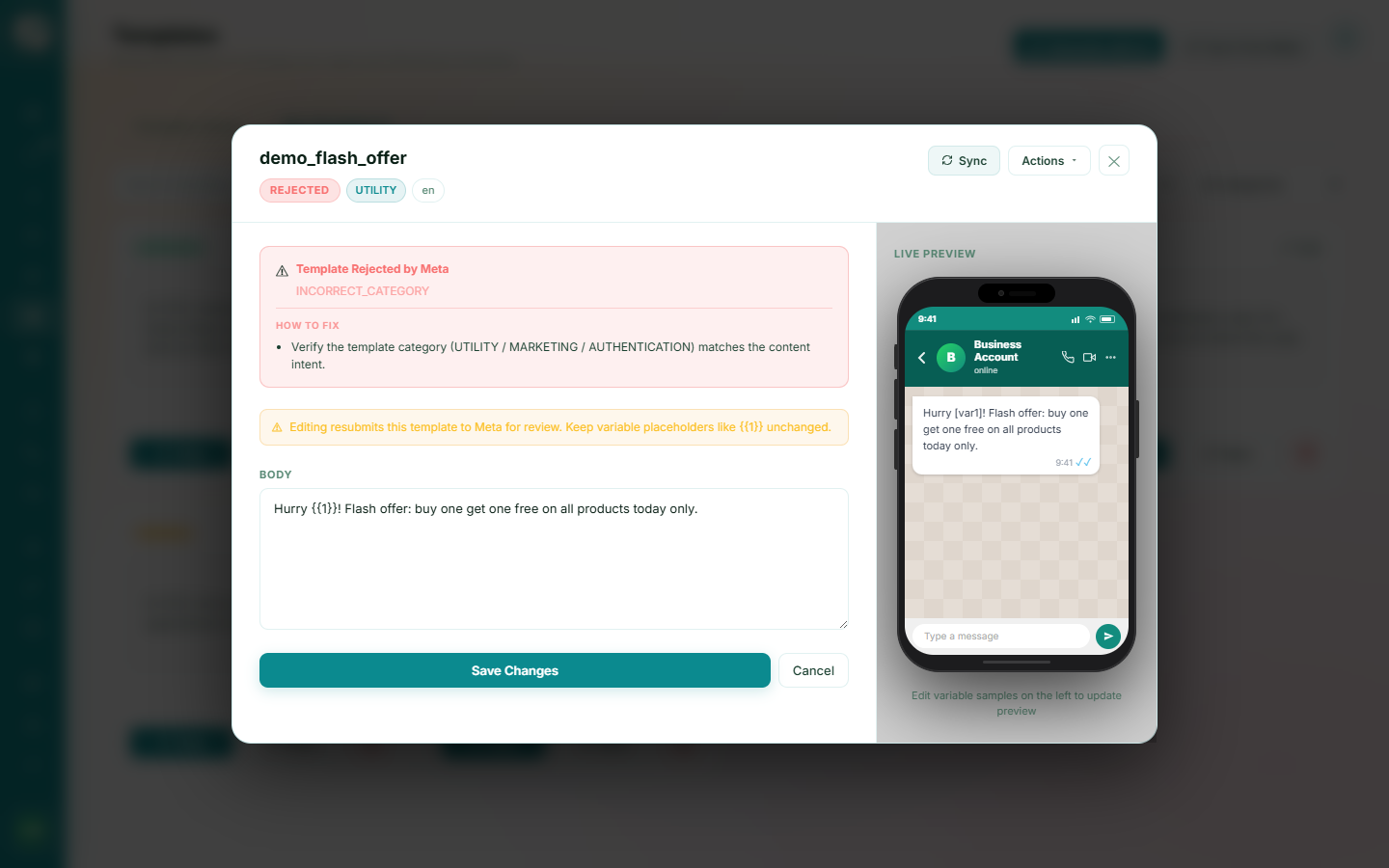
Edit and resubmit
Click Edit & Resubmit, adjust the content based on the rejection reason, and submit again — this sends the updated template to Meta for a fresh review.