

How to Create a WhatsApp Template
Build a WhatsApp message template and submit it to Meta for approval, ready to use in conversations and campaigns.
Beginner 4 min read
Tutorial video coming soon
What You'll Learn
In this tutorial you'll learn:
- Create a new template with a name, category, and body
- Understand that submission to Meta happens immediately
Prerequisites
Before you start:
- A connected WhatsApp Business Account
Step-by-Step Guide
1
Open New Template
Dashboard → Templates → New Template
Enter a template name using lowercase letters and underscores only, e.g. order_confirmation.
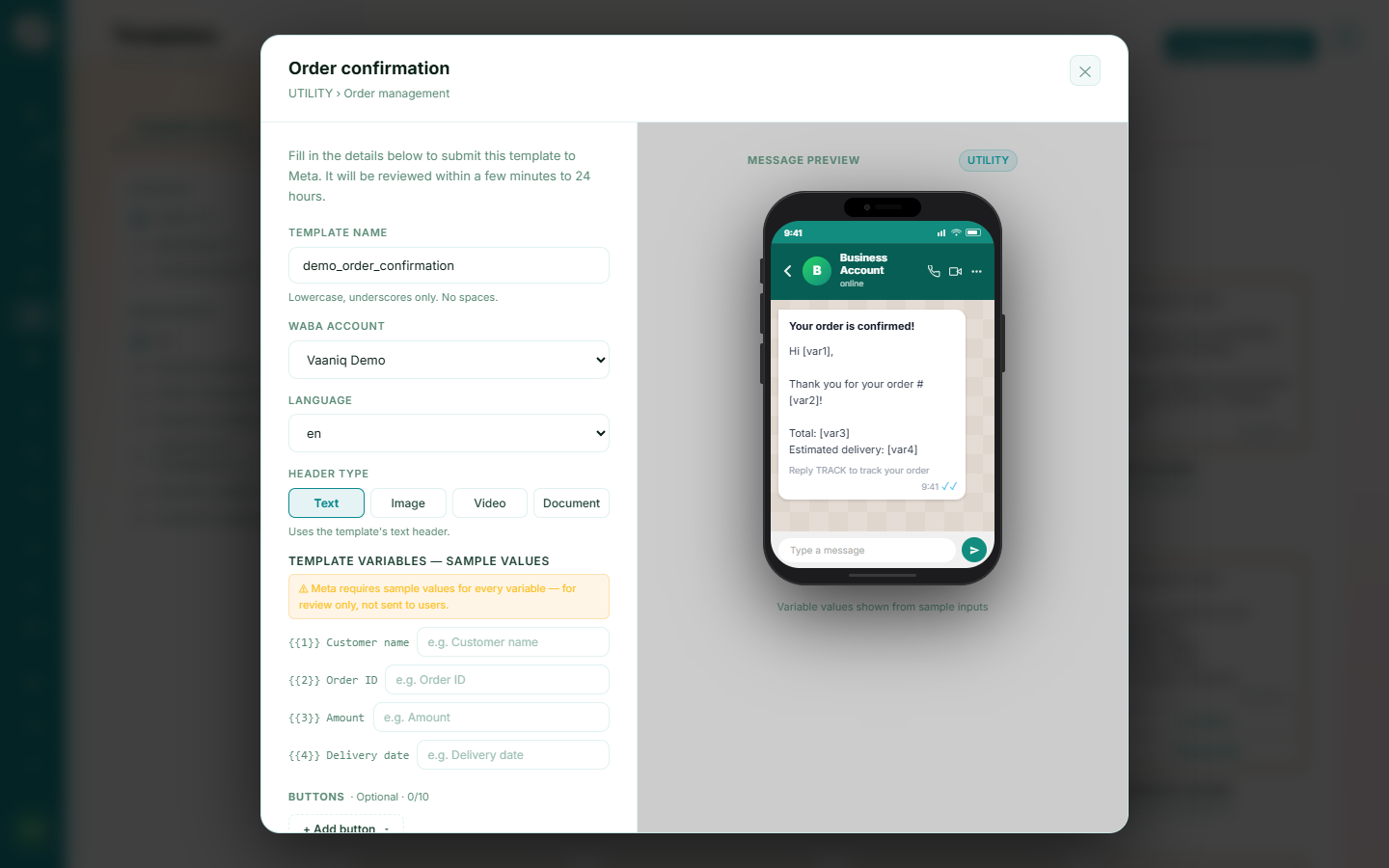
2
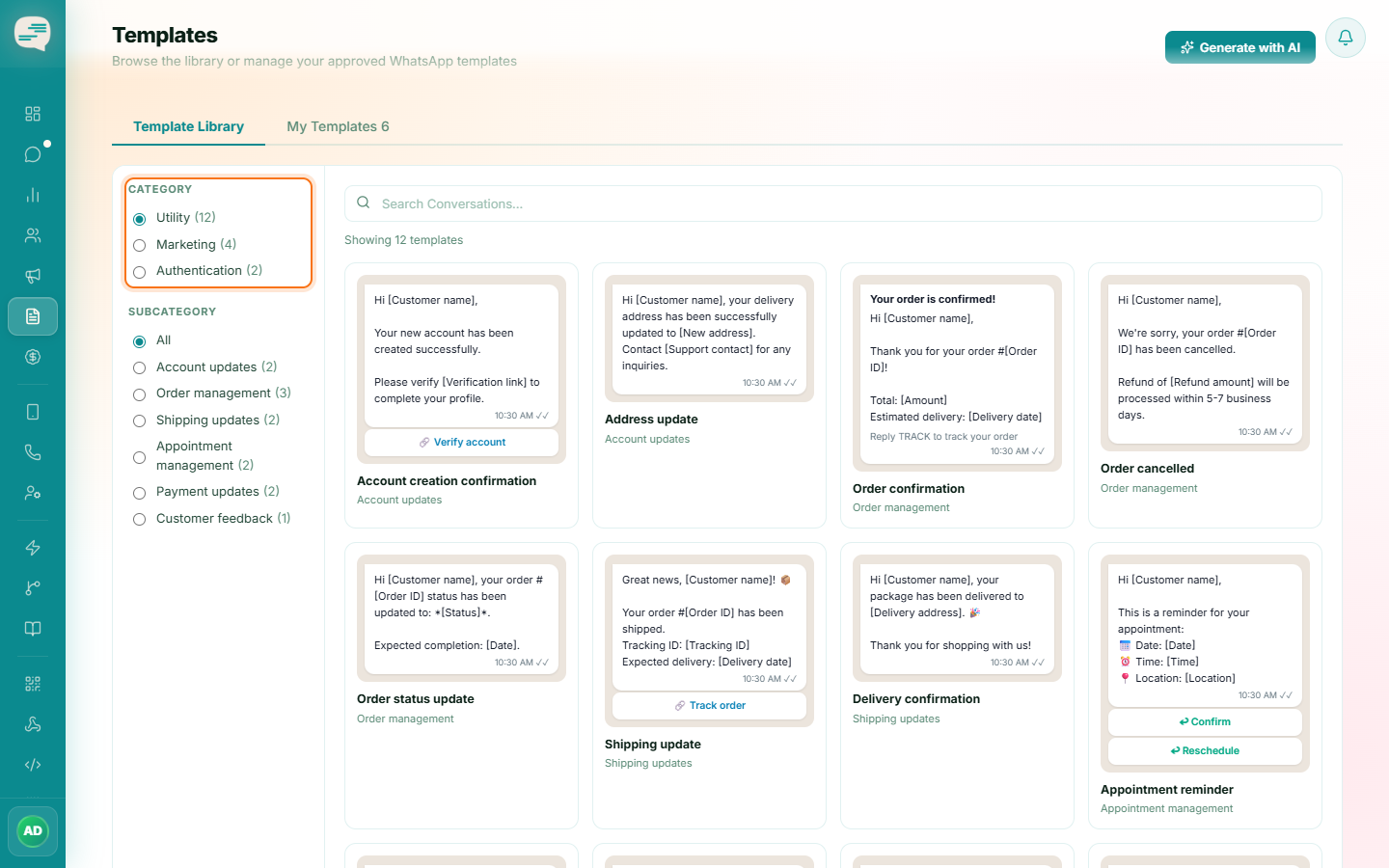
Choose a category and language
Pick Marketing, Utility, or Authentication, then select the template's language.
3
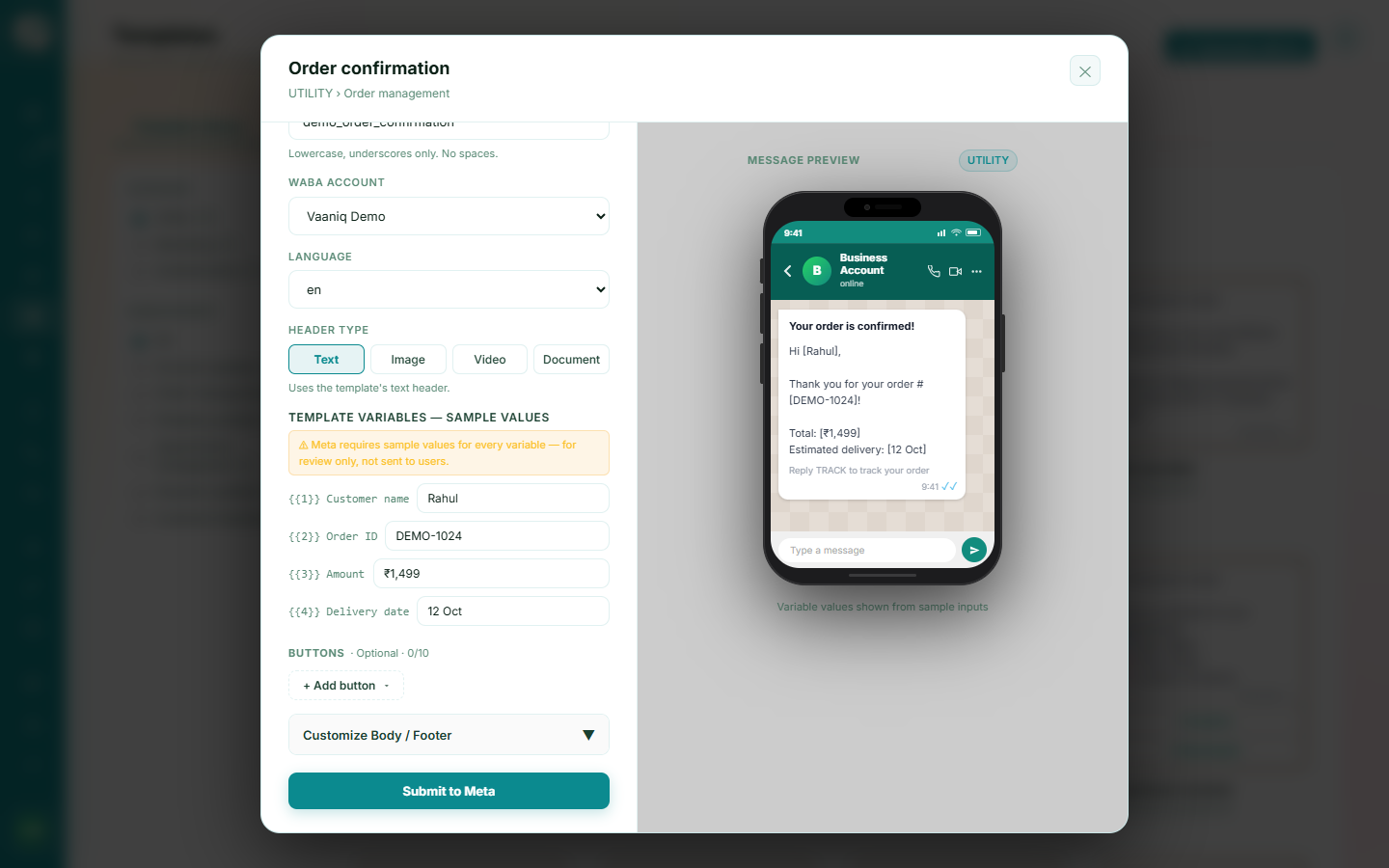
Write the body
Write your message body, using {{1}}, {{2}} and so on for variables. Optionally add a header (text or media), a footer, and buttons.
4
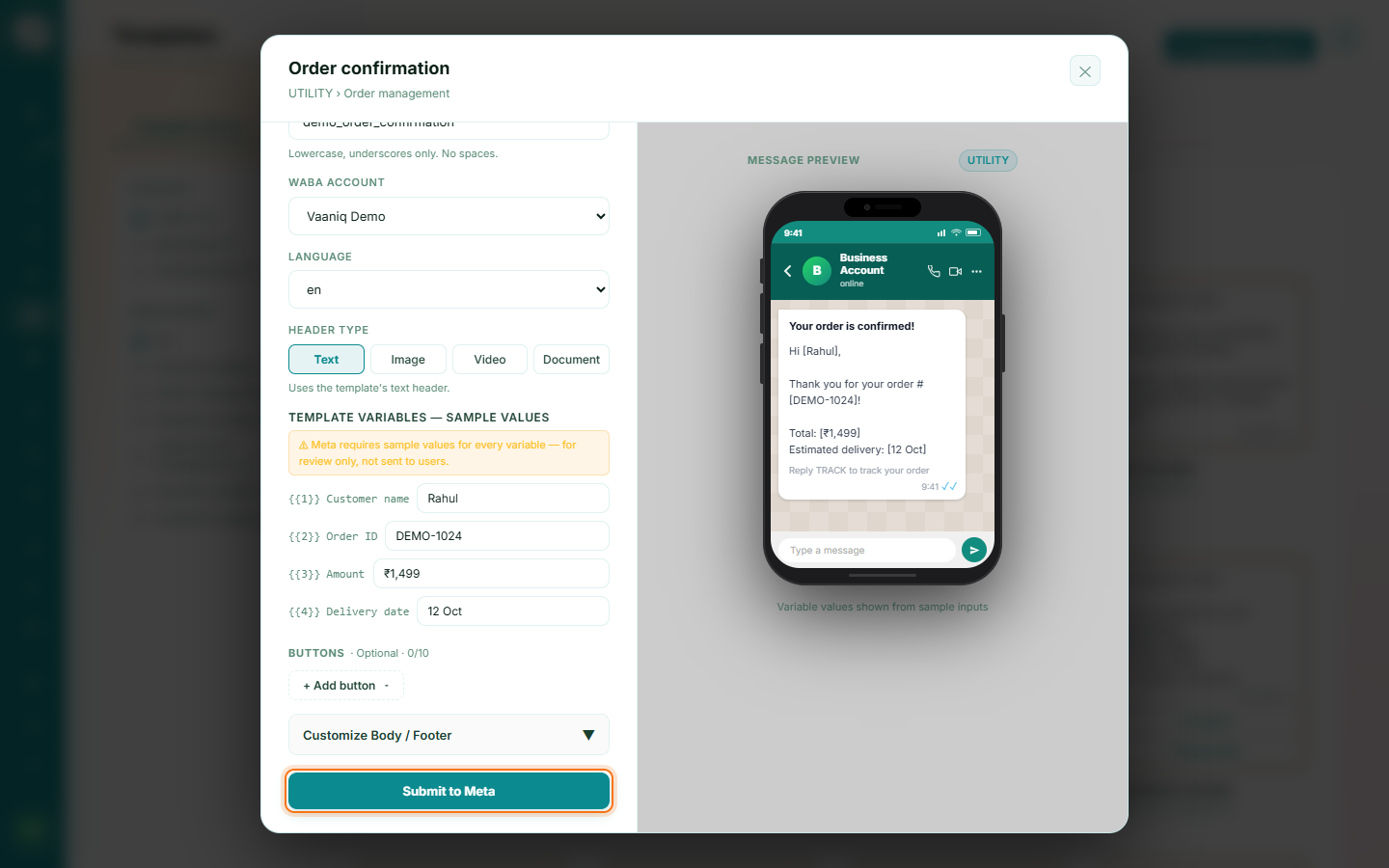
Submit
Clicking Submit sends the template to Meta for review right away — there's no separate "save as draft" step, so review your content before submitting.
Tip
Template names must be lowercase with underscores only — no spaces or other special characters.