
Your First WhatsApp Message with Vaaniq
Send a real, working WhatsApp message from Vaaniq for the first time — the fastest path from a fresh account to a delivered message.
Tutorial video coming soon
What You'll Learn
In this tutorial you'll learn:
- Send a guided test message from the onboarding wizard
- Understand when a template is required versus free text
Prerequisites
Before you start:
- A connected WhatsApp Business Account with at least one verified phone number
- At least one message template, or Meta's built-in hello_world sample template
Step-by-Step Guide
Open the guided test-message step
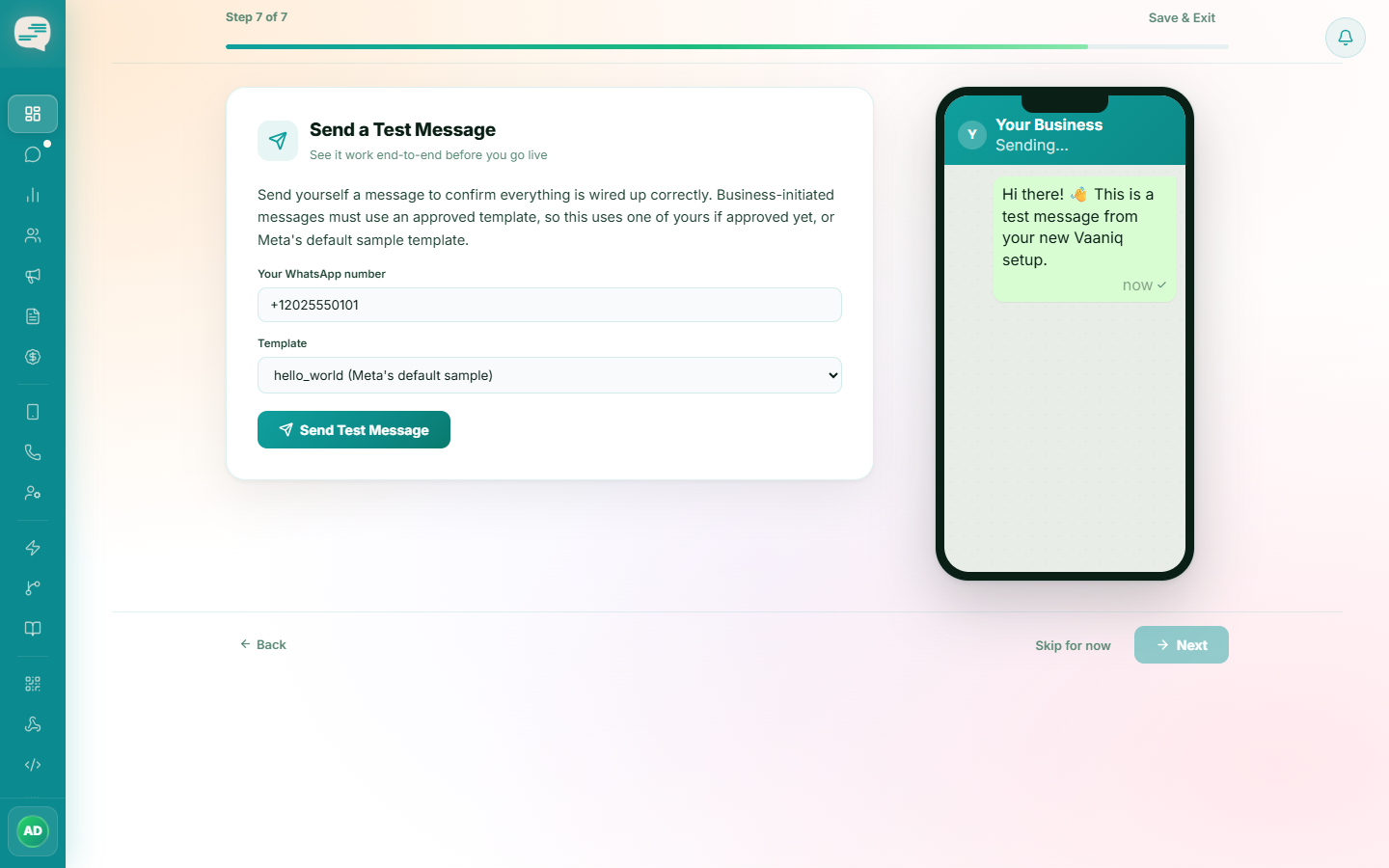
If you're still inside the onboarding wizard, its final steps walk you through sending a test message: pick an approved template (or the hello_world sample if your own template is still pending approval), enter your own WhatsApp number, and send.
Or reply to a real inbound message
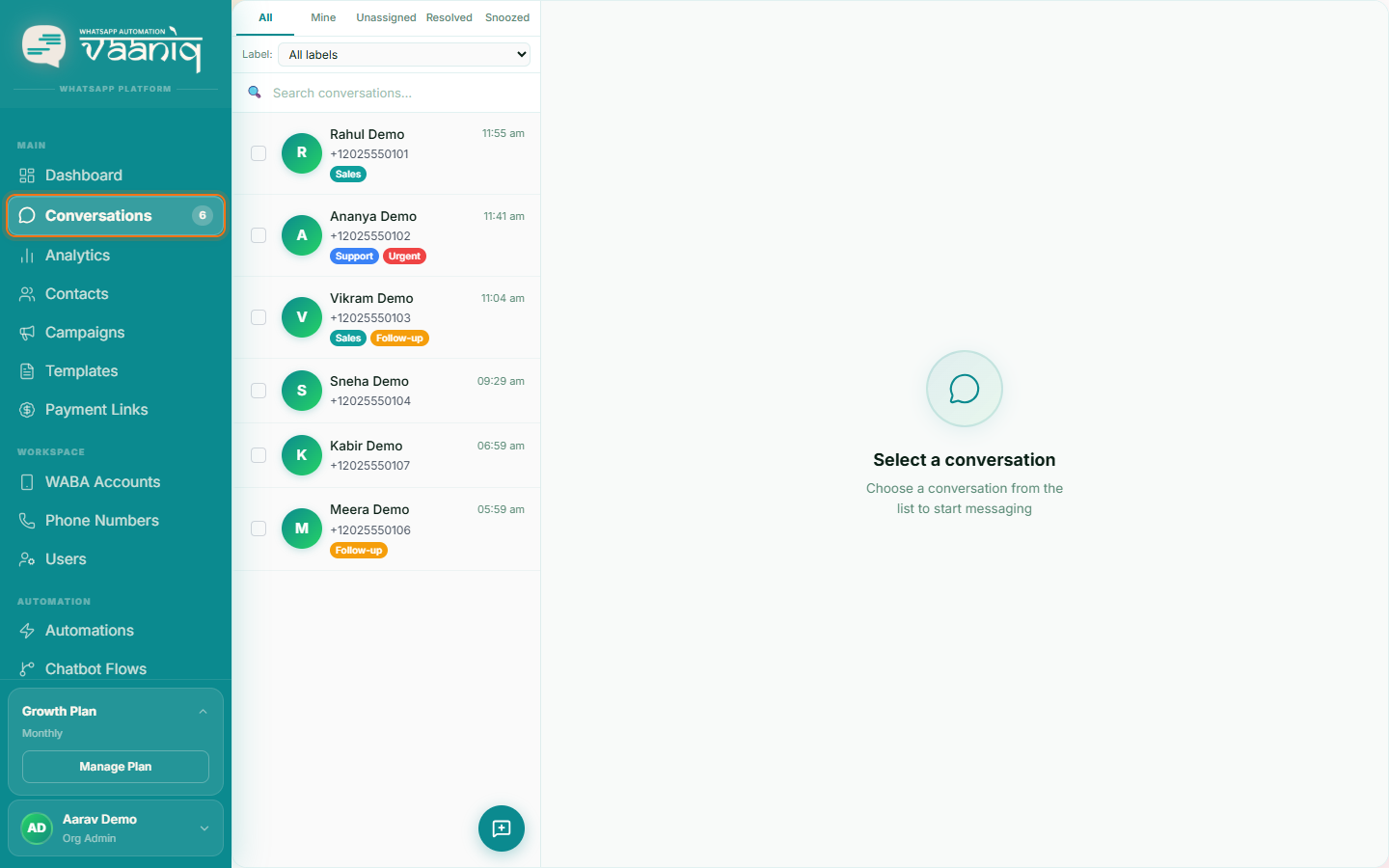
If a customer has already messaged your number, open Conversations and reply with plain text — no template is required for a reply within an active session.
Or send your first Campaign
To message people who haven't contacted you first, use an approved template through Campaigns — this is the correct path for any business-initiated outreach.
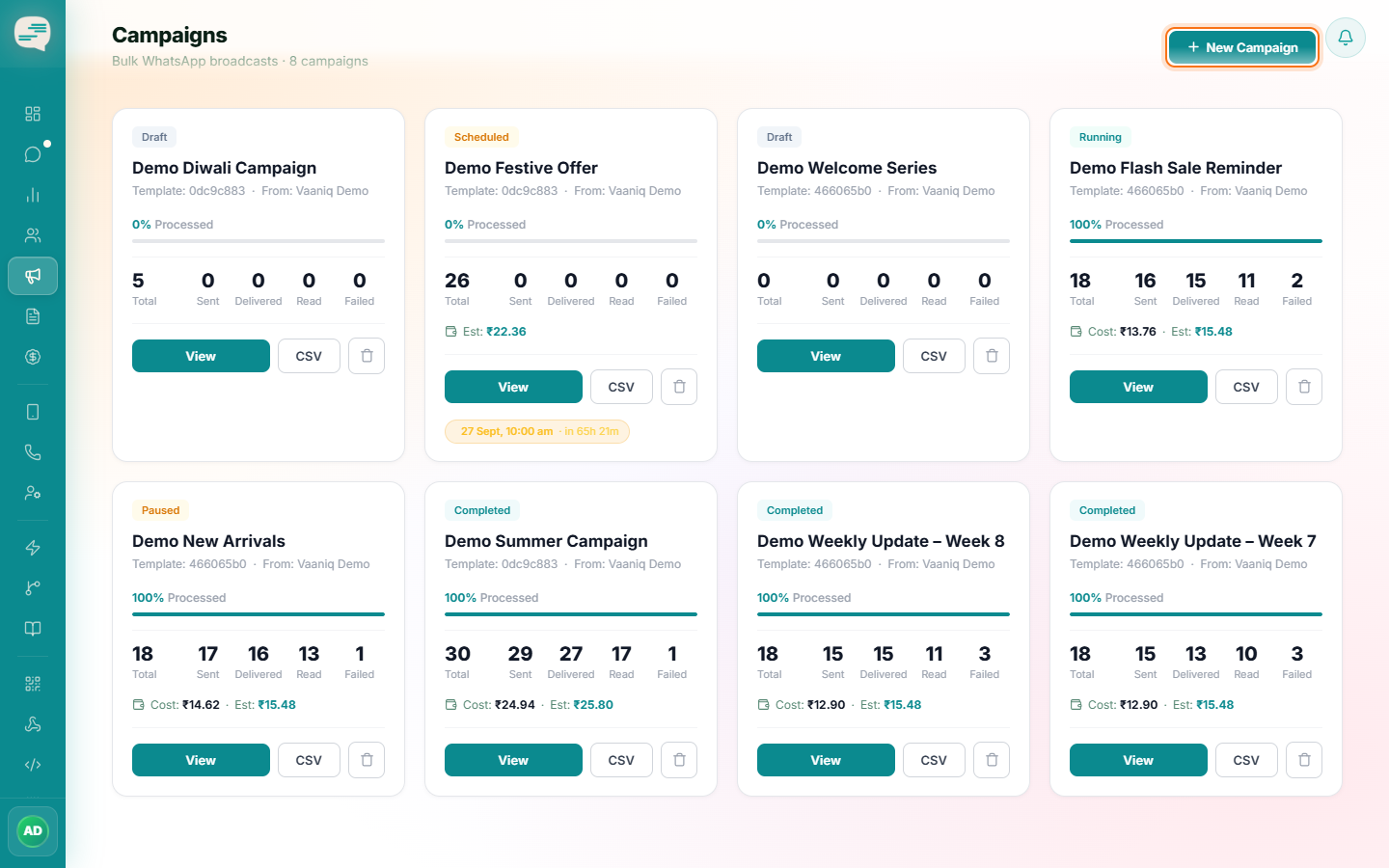
A business-initiated message (one your customer didn't start) always needs an approved template. Free-text replies only work inside an existing customer-started conversation.
Common Issues
Sending is blocked with a message about billing or a frozen account.
This means your trial has expired without a plan purchased yet, or (if message billing is active on your plan) your wallet balance has hit zero. Check Settings → Billing to resolve either case.