

How to Create Your Vaaniq Account
Sign up, verify your email with a one-time code, and land in your new workspace's guided onboarding wizard.
Tutorial video coming soon
What You'll Learn
In this tutorial you'll learn:
- Register a new organisation and admin account
- Verify your email with the one-time code
- Understand what happens automatically after signup
Prerequisites
Before you start:
- A work email address you can access
Step-by-Step Guide
Open the sign-up page
Go to the Vaaniq sign-up page and fill in your full name, organisation name, work email, and mobile number. Choose your team size and expected monthly message volume — these are just used to pick the right starting trial plan for you.
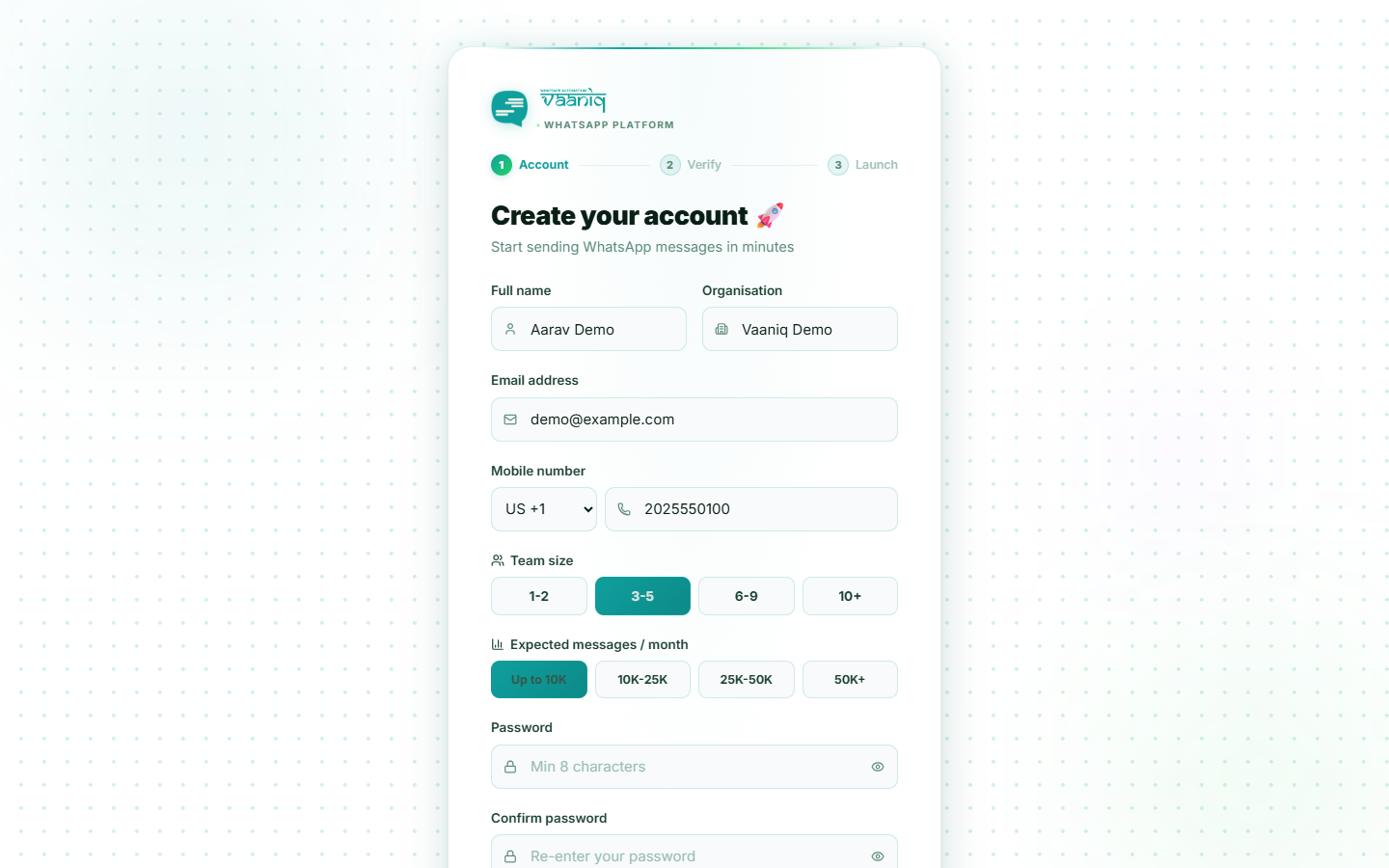
Set a password and agree to the terms
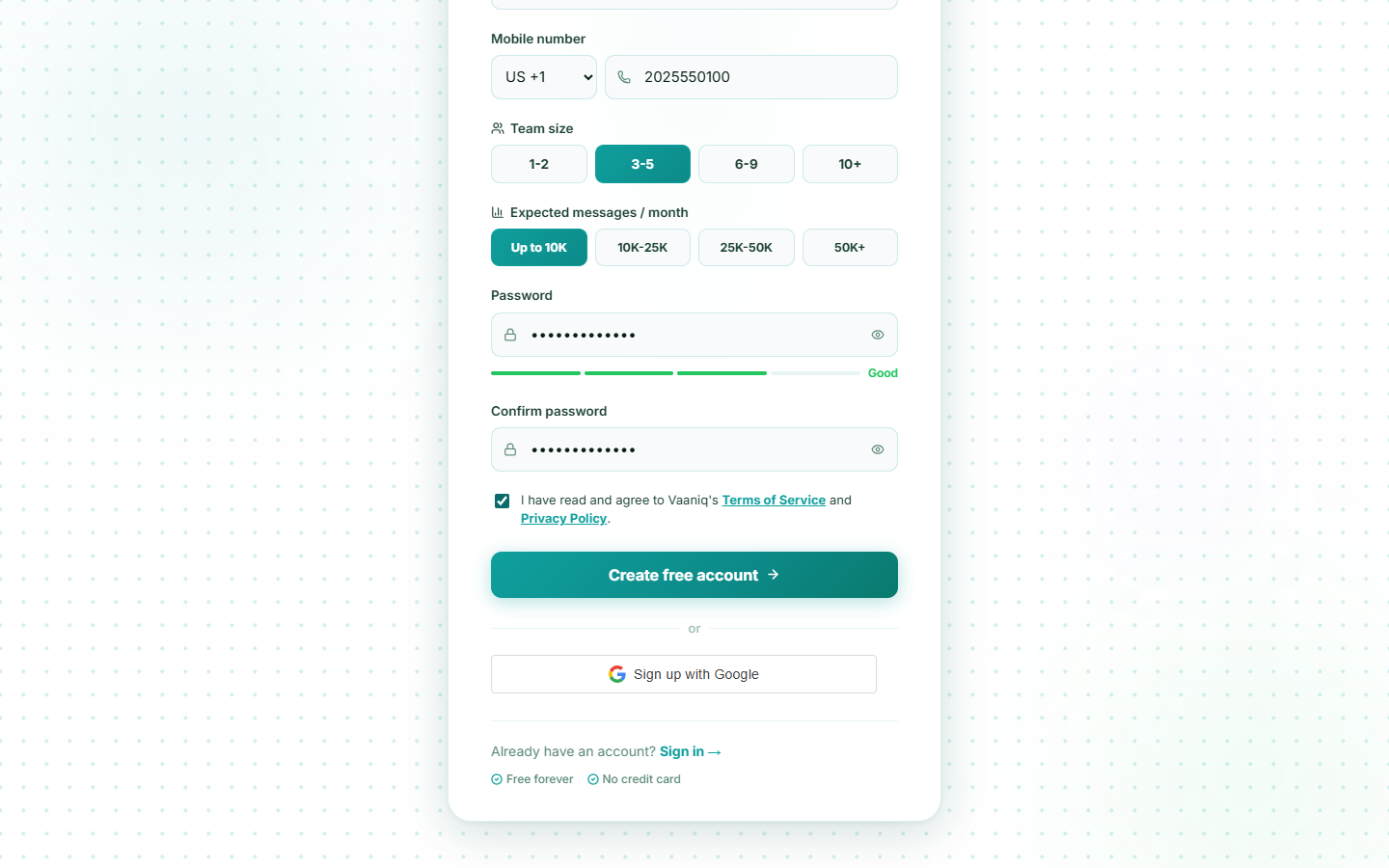
Create a password (at least 8 characters), confirm it, and check the box to accept the Terms of Service and Privacy Policy. Submitting the form creates your organisation, your admin user account, and a wallet — all in one step — and automatically starts a free trial subscription.
Enter the verification code
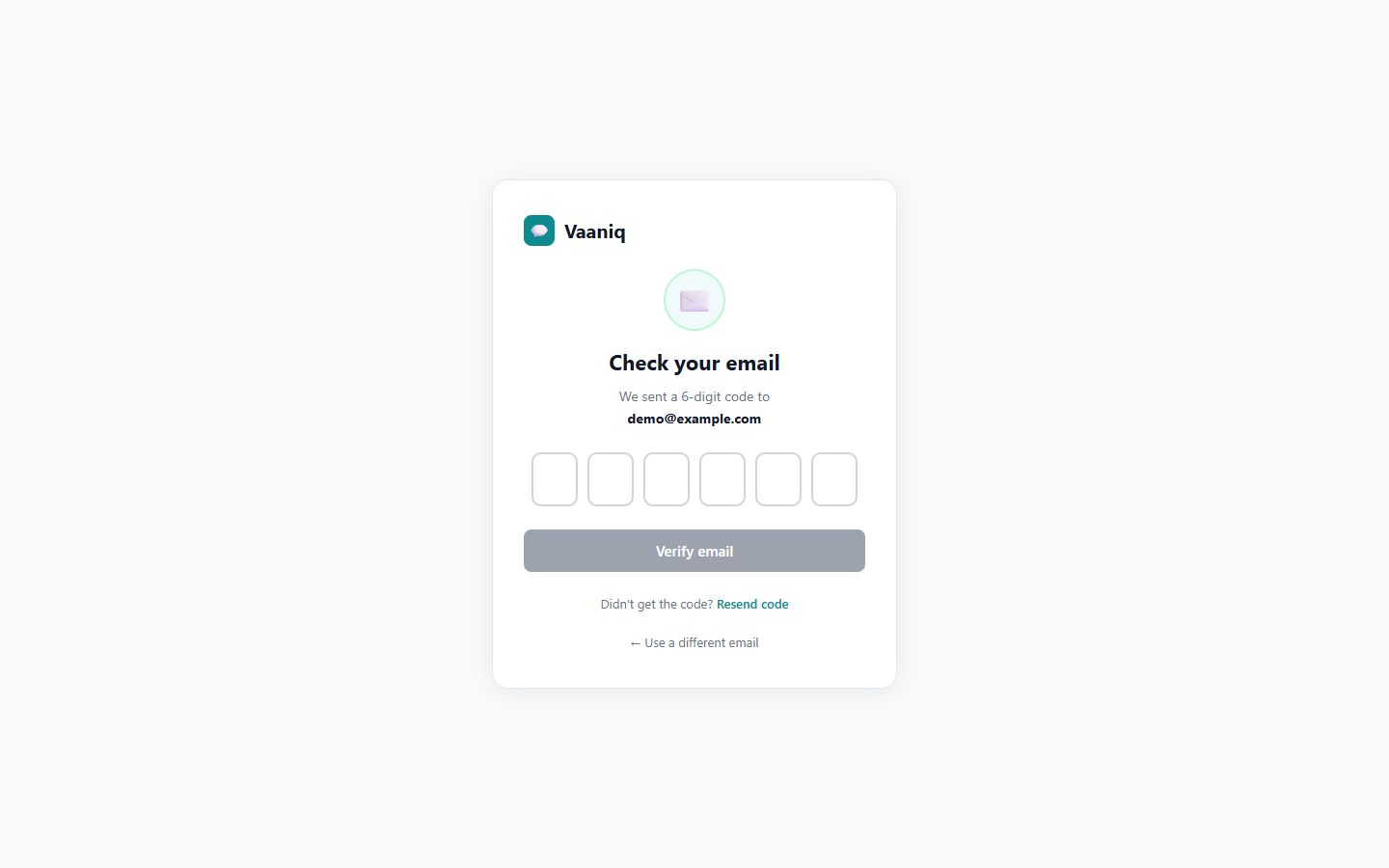
Check your inbox for a 6-digit verification code and enter it on screen. This is a code, not a clickable link — if it doesn't arrive within a couple of minutes, check spam or use the resend option (available every 60 seconds).
Land in your workspace
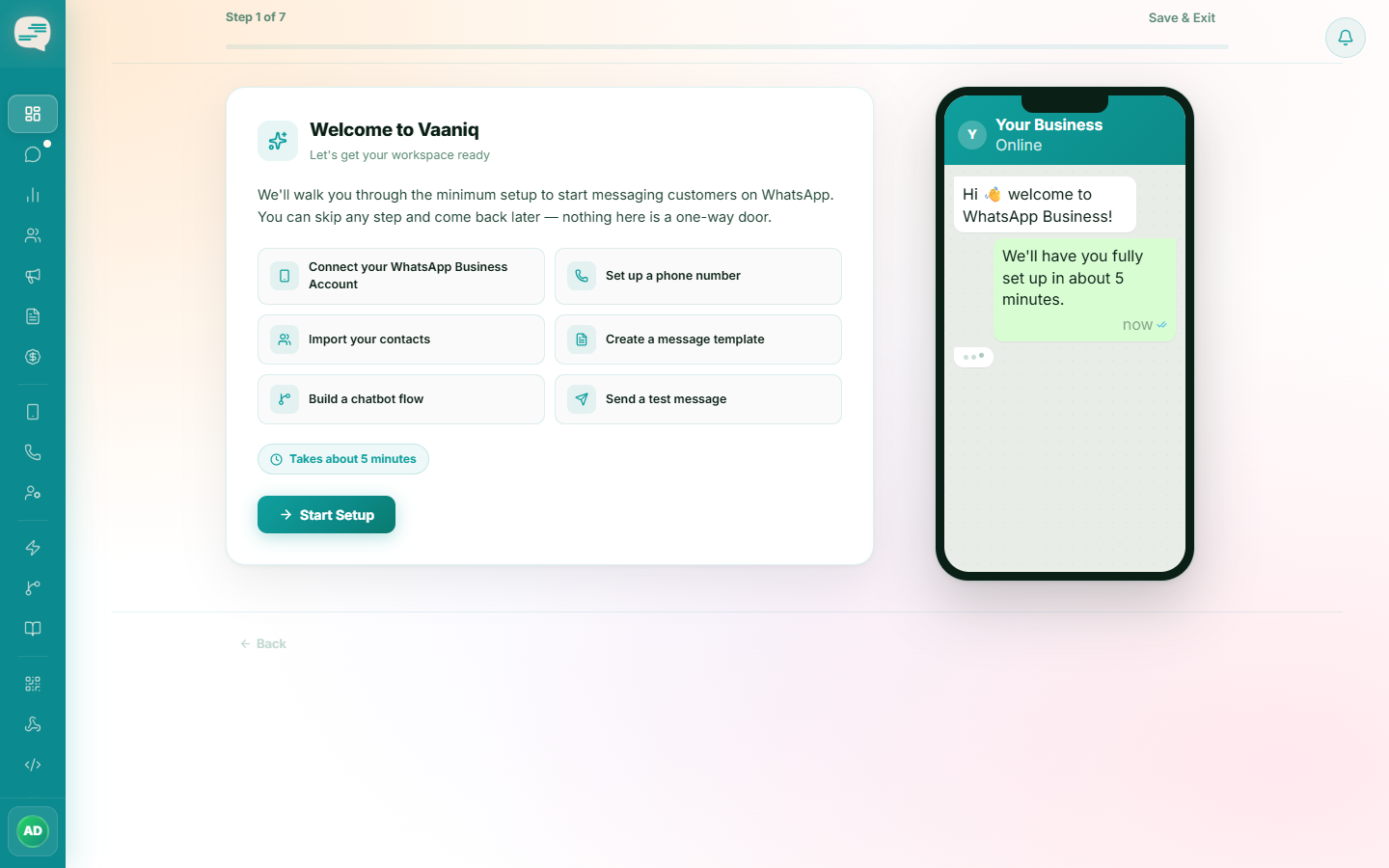
Once verified, you're signed in automatically and taken straight to your Dashboard, where a step-by-step onboarding wizard opens to guide you through connecting WhatsApp.
The team size and volume questions only affect which trial plan you start on — you can change plans later from Settings → Billing.
Common Issues
The verification code hasn't arrived.
Check your spam/junk folder first. If it's still missing after a couple of minutes, use the resend button on the verification screen (it becomes available again every 60 seconds).
Signup says the email already has an account pending deletion.
This means the email belongs to a previously deleted account still inside its restore window. You'll be offered a choice: restore that old account instead, or permanently abandon it and continue with a brand-new signup.