

How to Connect WhatsApp Using Meta Embedded Signup
A detailed, step-by-step walkthrough of Meta's guided Embedded Signup popup — the fastest and most reliable way to connect WhatsApp to Vaaniq.
Tutorial video coming soon
What You'll Learn
In this tutorial you'll learn:
- Start the Embedded Signup flow from WABA Accounts
- Choose or create a Meta Business Manager
- Choose or create a WhatsApp Business Account and phone number
- Complete the connection and confirm it landed correctly in Vaaniq
Prerequisites
Before you start:
- A Vaaniq account
- A Facebook account with access to (or the ability to create) a Meta Business Manager
- A phone number that isn't already active on the regular WhatsApp or WhatsApp Business consumer app
- A secure (HTTPS) connection — the flow will not start over plain HTTP
Step-by-Step Guide
Open Embedded Signup
From the sidebar go to WABA Accounts, click Add Account, and choose Embedded Signup. A Meta popup window opens.
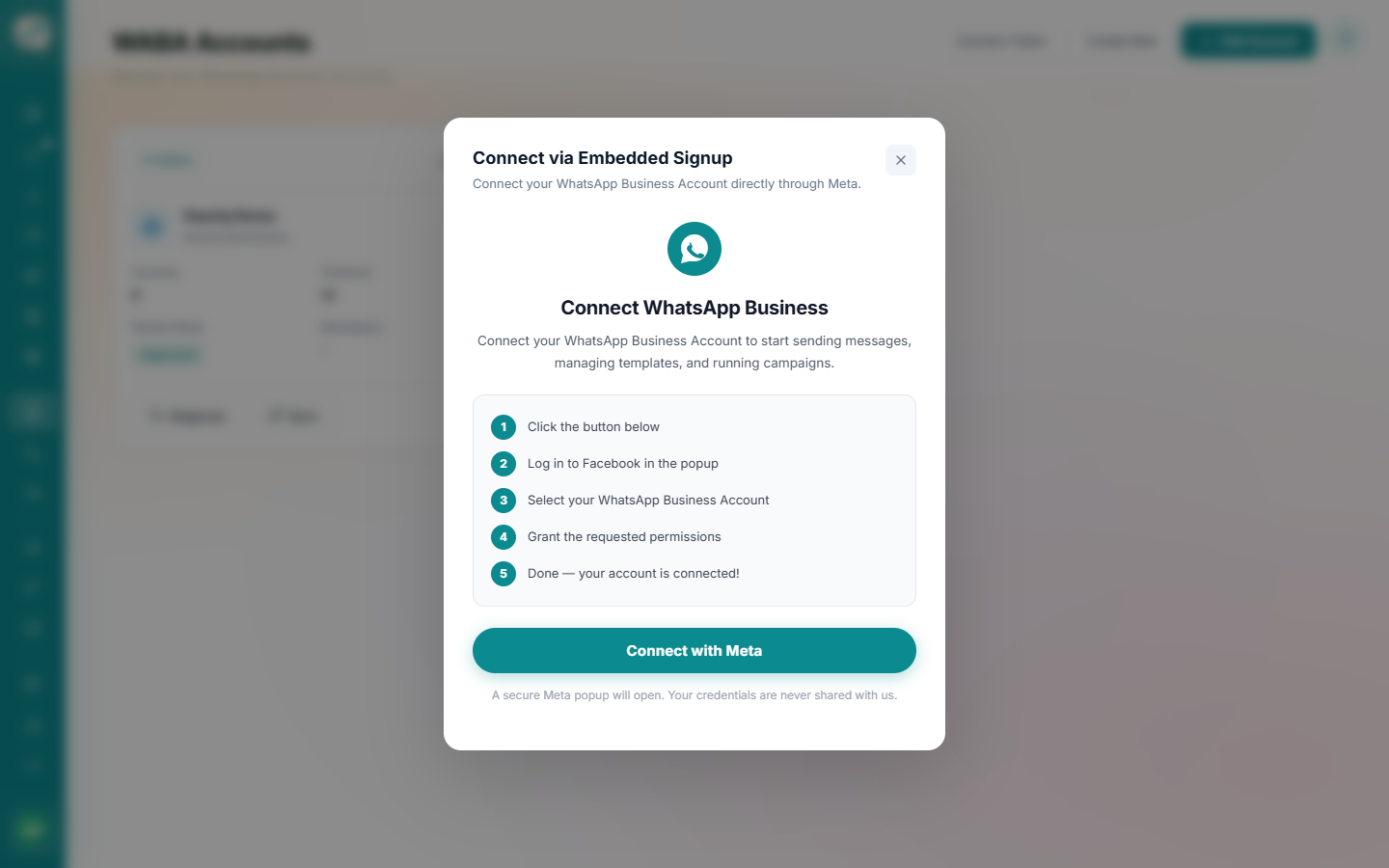
Log into Facebook
Log in with the Facebook account that has (or will create) your Business Manager. If you don't have a Business Manager yet, the flow guides you through creating one — no prior Meta setup is required.
Choose your Business Manager and WhatsApp Business Account
Select an existing Business Manager or create a new one, then select an existing WhatsApp Business Account or create a new one.
Select or purchase a phone number
Choose a phone number to use, or purchase a new one through the flow. The number must not currently be active on the regular WhatsApp or WhatsApp Business consumer app.
Review permissions and finish
Accept Meta's terms and grant the requested permissions. The popup closes automatically once the connection completes.
Confirm it connected in Vaaniq
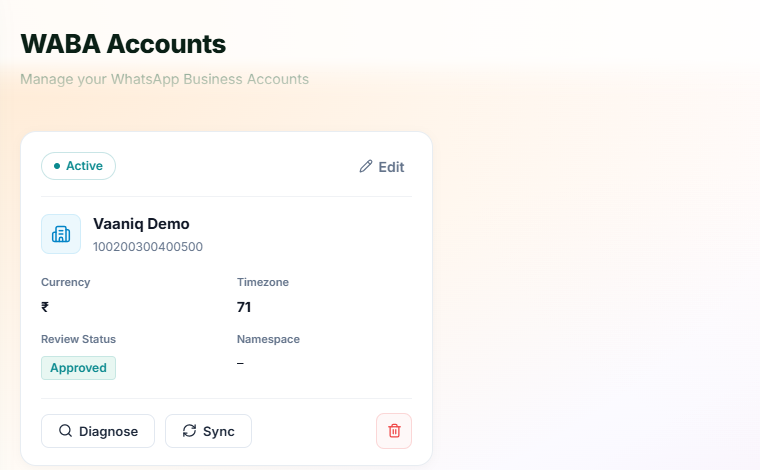
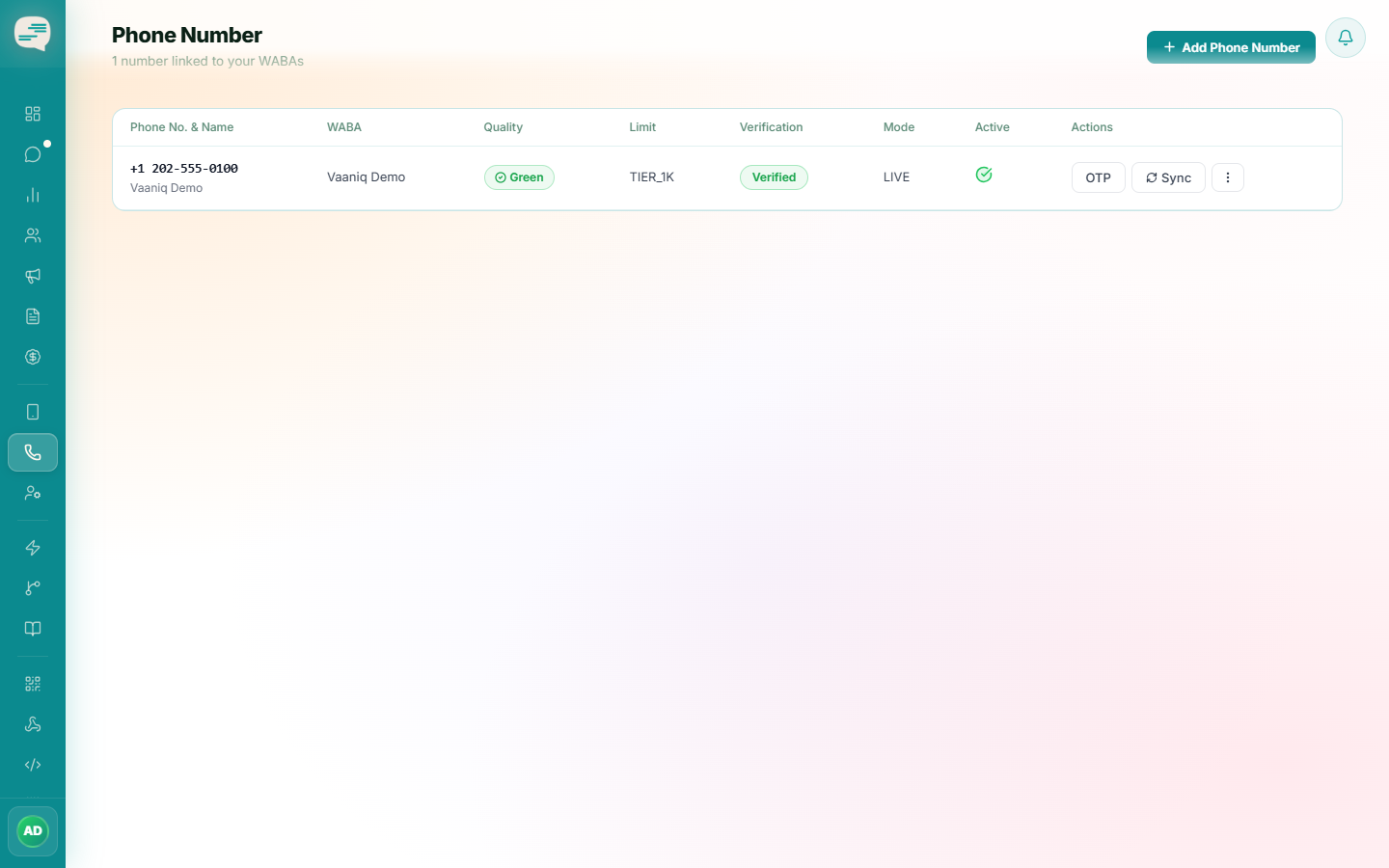
Back in Vaaniq, your WABA now appears on the WABA Accounts page with its phone number already synced onto the Phone Numbers page.
If you don't have a Meta Business Manager yet, don't set one up separately first — the Embedded Signup flow creates one for you as part of the same process.
Numbers connected this way typically arrive already registered and verified by Meta, so you usually won't need the manual OTP verification step described in the phone number tutorial.
Common Issues
The popup doesn't open, or nothing happens when you click Embedded Signup.
Make sure you're on a secure (HTTPS) connection — the flow deliberately blocks itself on plain HTTP except on localhost. Also allow a few seconds for Meta's SDK to finish loading before clicking.
The popup closed and nothing appeared in Vaaniq.
This usually means the popup was closed before completing all the steps inside it (Business Manager selection, WABA selection, phone number, and permission grant all need to be completed). Reopen Embedded Signup and go through the full flow without closing it early.