

How to Add & Verify Your WhatsApp Phone Number
Register a WhatsApp phone number and verify it with an SMS or voice OTP so it can start sending and receiving messages.
Tutorial video coming soon
What You'll Learn
In this tutorial you'll learn:
- Add a phone number by its Meta Phone Number ID
- Request and enter an OTP to verify a number
- Understand quality rating and messaging limit fields
Prerequisites
Before you start:
- A connected WhatsApp Business Account
- A phone number already present in your Meta Business Manager
Step-by-Step Guide
Open Phone Numbers
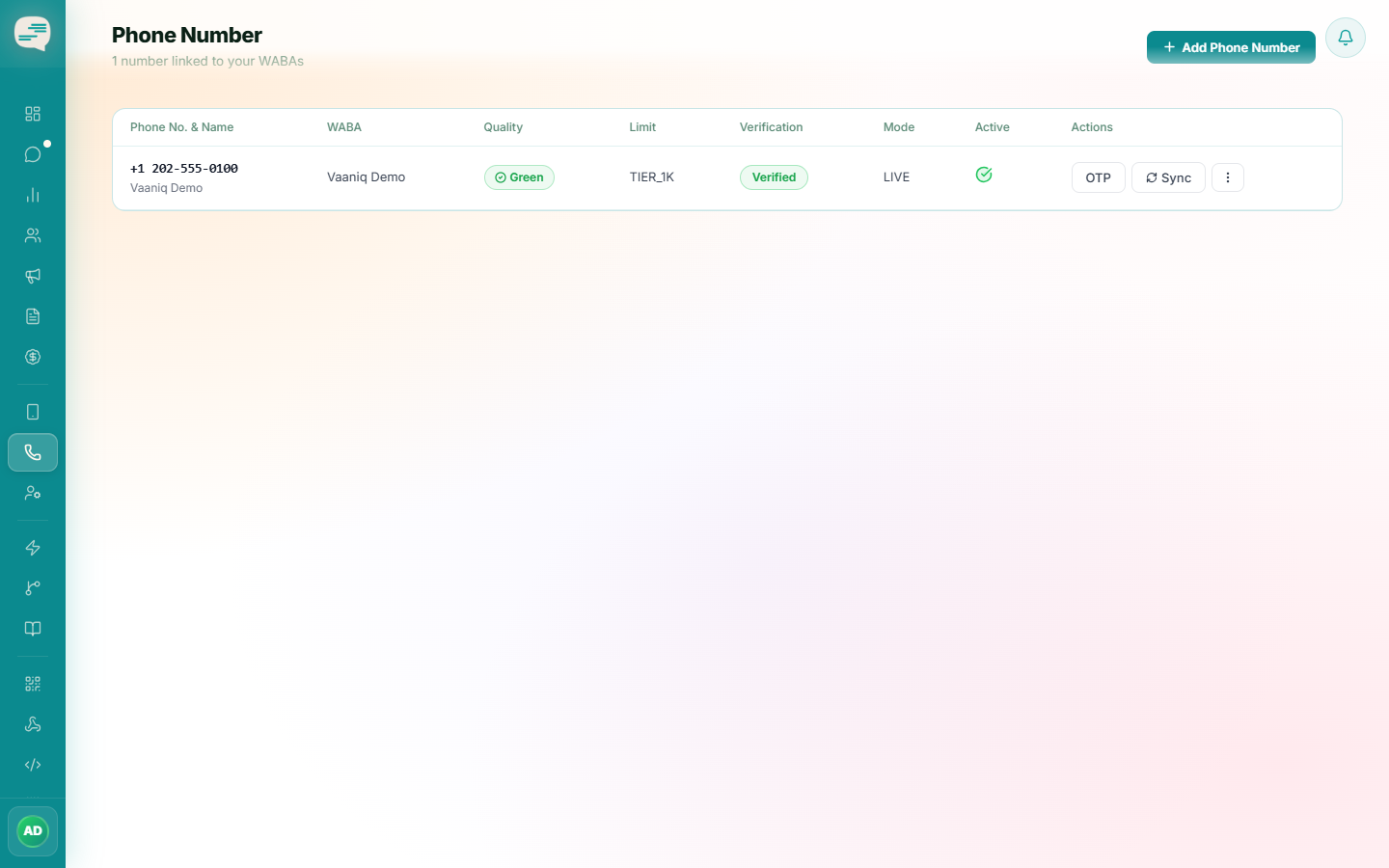
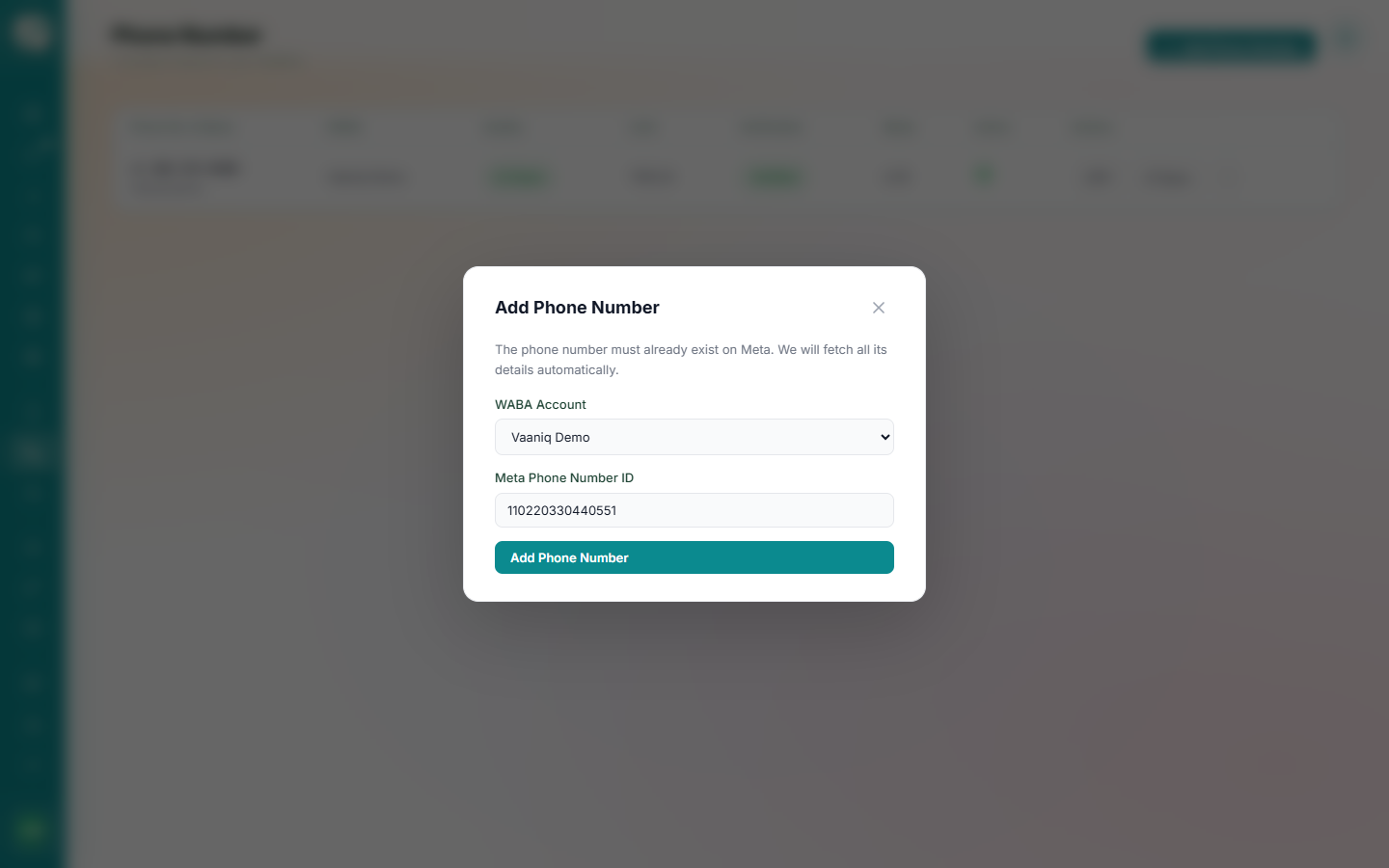
Numbers linked through Embedded Signup appear here automatically. To add one manually, click Add Phone Number, select the WABA, and enter the Meta Phone Number ID — quality rating, messaging limit, and verification status all sync in from Meta automatically.
Register a new number
If a number is new, open its row menu and choose Register, then set a 6-digit PIN. A number must be registered before it can send messages through the Cloud API.

Request a verification code
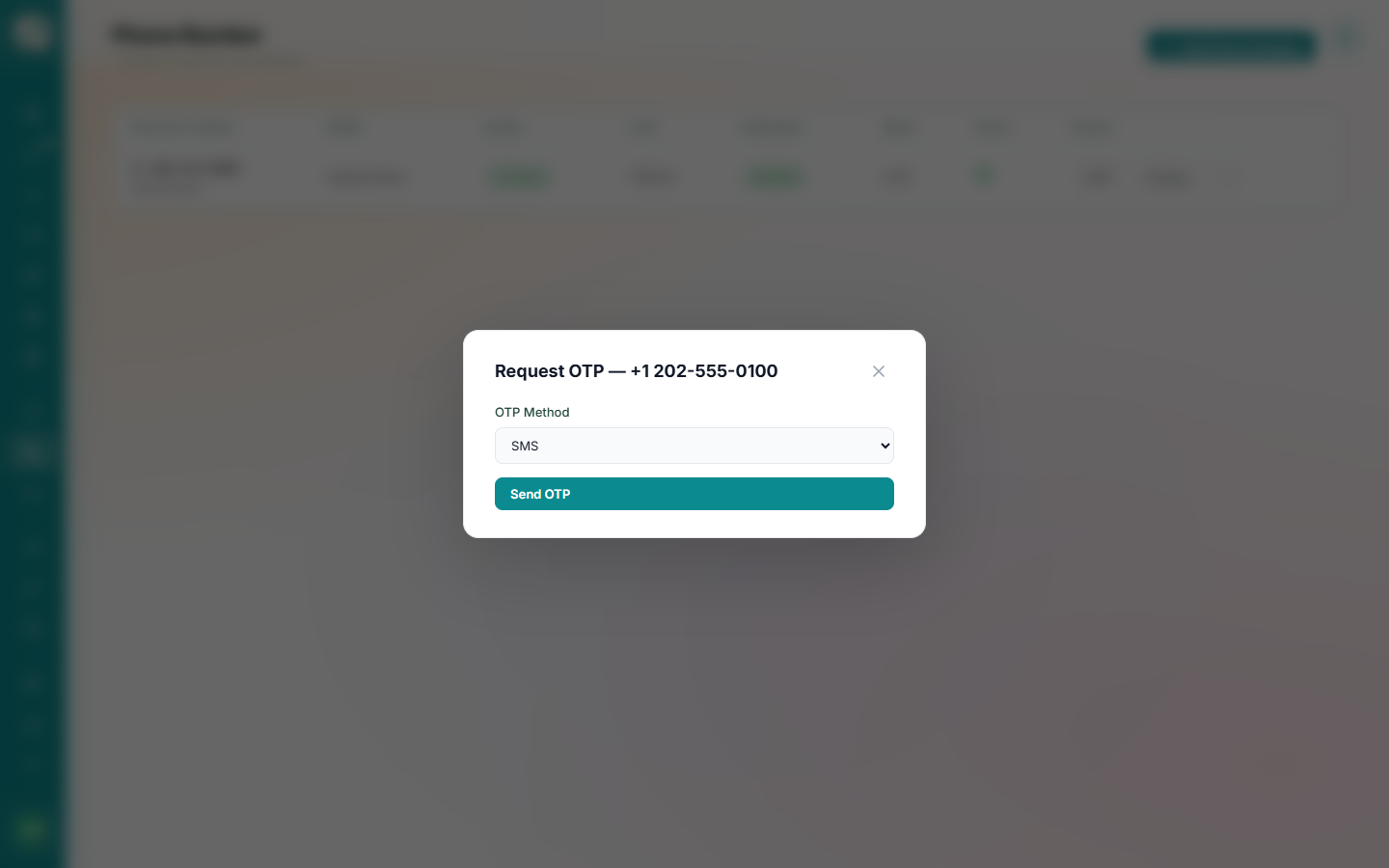
If a number shows as unverified, click Request OTP and choose SMS or Voice call for delivery.
Enter the code
Enter the code you receive in the Verify OTP dialog. The number's status updates to Active/Verified once confirmed.
Numbers added automatically through Embedded Signup are usually already registered and verified by Meta — this manual OTP flow mainly applies to numbers added directly by Phone Number ID.
Common Issues
A number shows a RED quality rating.
Quality rating is calculated by Meta based on block rate and negative feedback from recipients, not by Vaaniq. Improve it by sending relevant messages, keeping opt-in lists clean, and monitoring opt-outs.