

How to Import Contacts Using CSV/Excel
Bulk-import your contact list from a CSV or Excel file — Google Contacts and Apple vCard exports work too.
Tutorial video coming soon
What You'll Learn
In this tutorial you'll learn:
- Prepare a contact file for import
- Import contacts and organise them into a group automatically
Prerequisites
Before you start:
- A CSV, Excel (.xlsx), Google Contacts export, or Apple vCard (.vcf) file
Step-by-Step Guide
Prepare your file
Make sure the first row is a header row (Name, Phone, Email, etc.) and phone numbers include a country code, e.g. +1XXXXXXXXXX.
Click Import and choose a file type
Vaaniq supports CSV, Excel (.xlsx), a direct Google Contacts import, and Apple/iCloud vCard (.vcf) files.
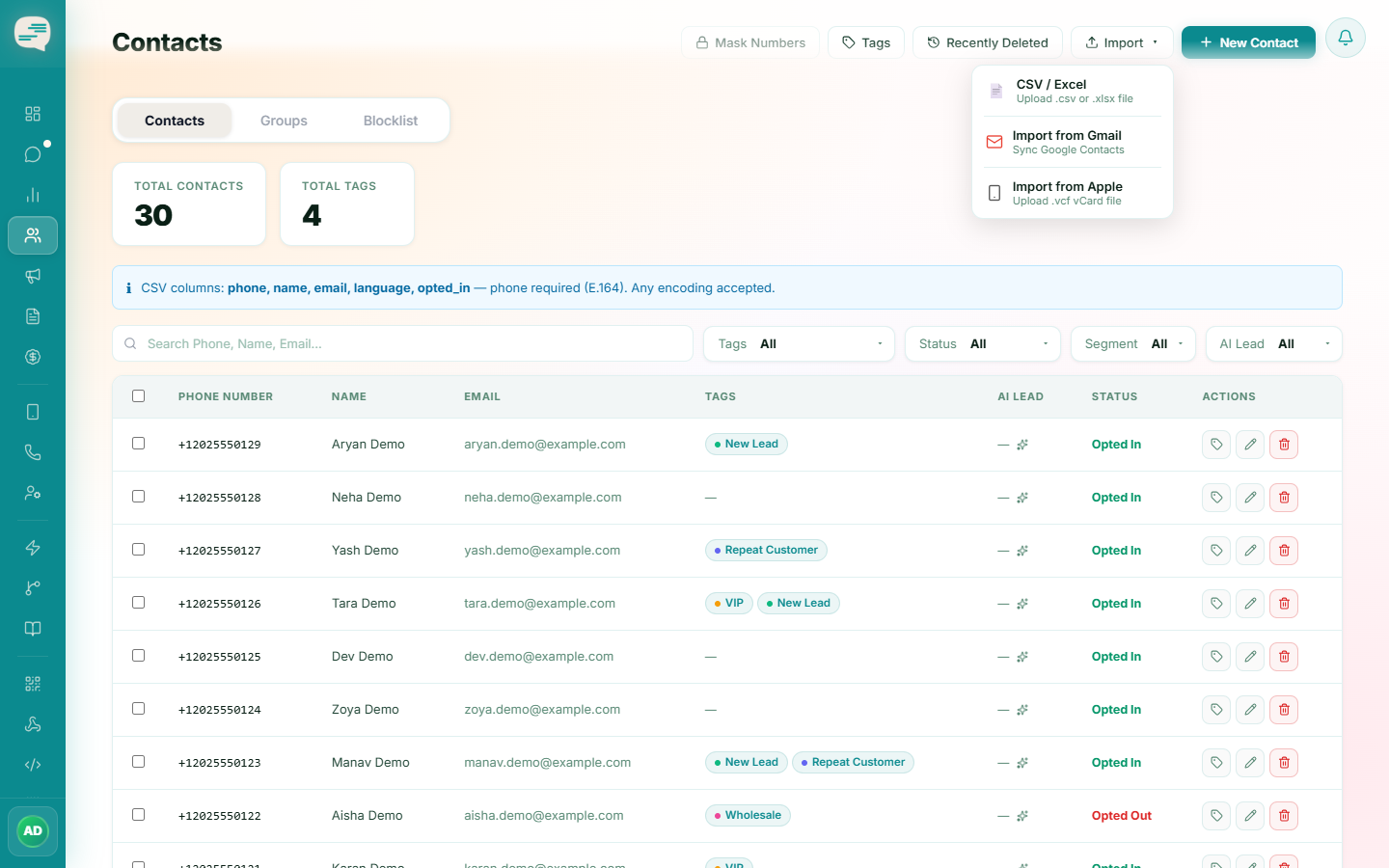
Upload and confirm
Upload the file — existing contacts matched by phone number are updated in place rather than duplicated, and every import automatically creates a named Group so you can find or remove that batch later.
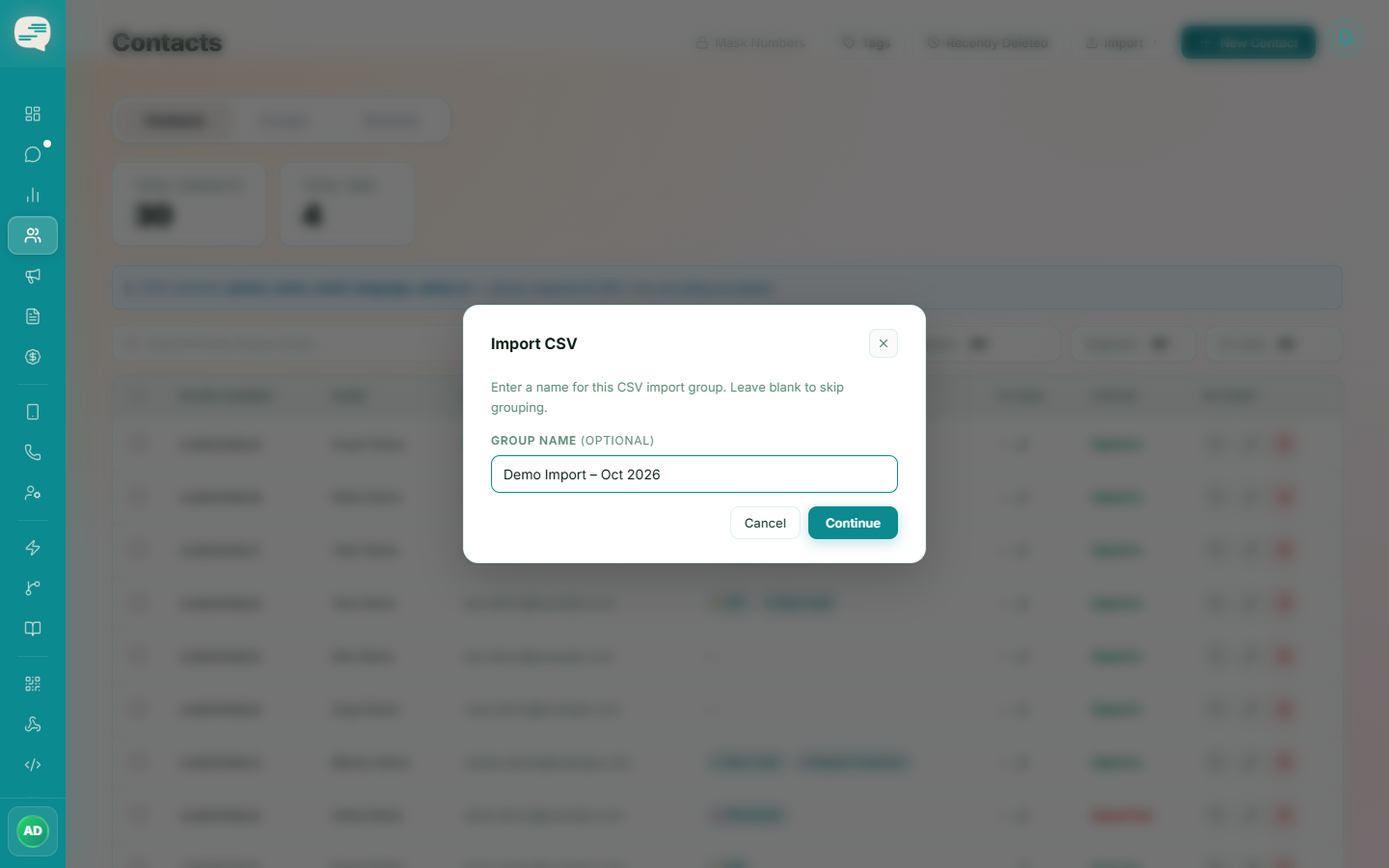
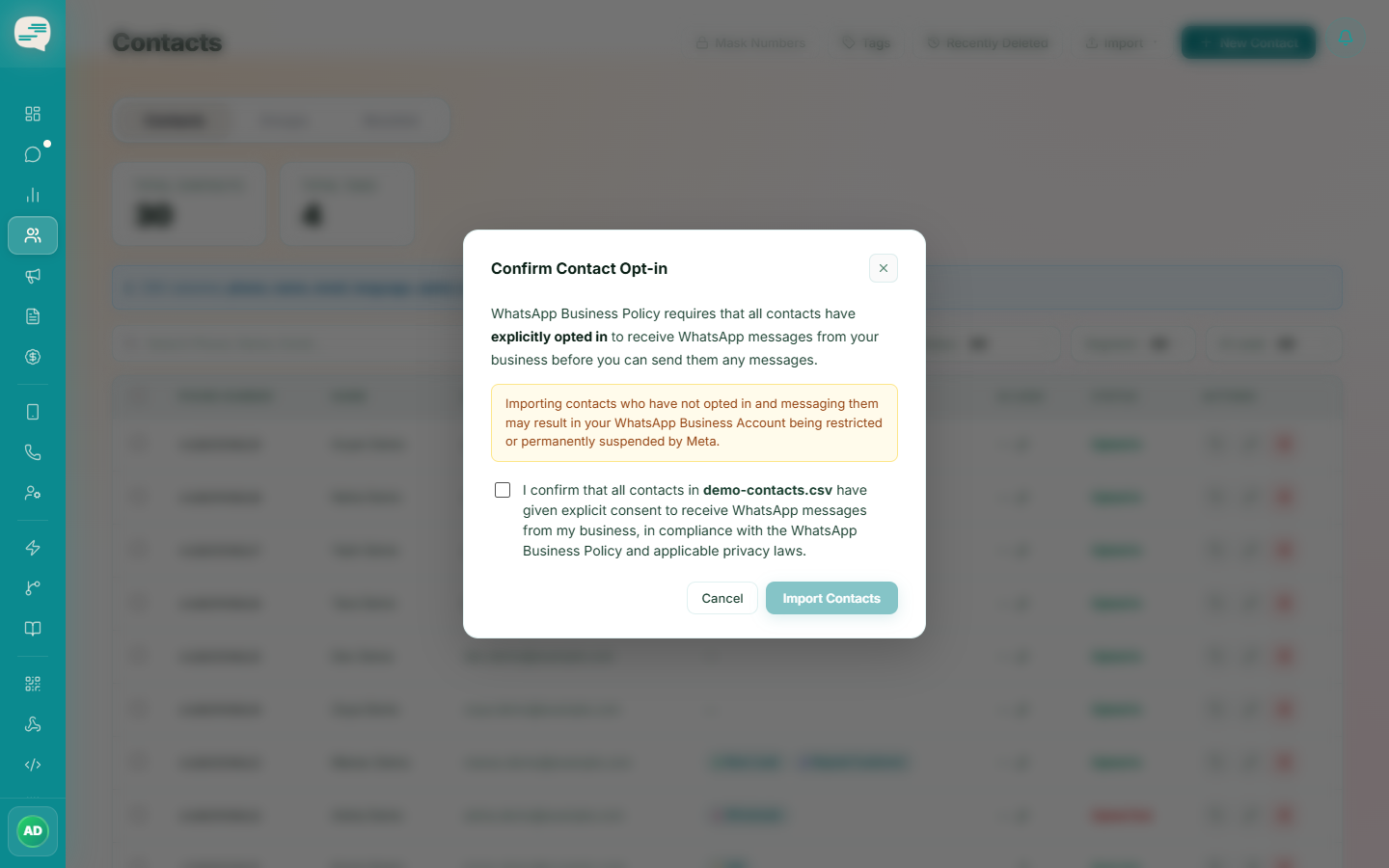
If something goes wrong with an import, you can undo it by deleting the Group that import created — this removes exactly the contacts from that batch.