

How to Generate & Send Payment Links Inside WhatsApp
Create a Razorpay payment link from inside a conversation and send it to the customer as a WhatsApp message, in one step.
Beginner 3 min read
Tutorial video coming soon
What You'll Learn
In this tutorial you'll learn:
- Create and send a payment link from a conversation
- Understand where the money goes
Prerequisites
Before you start:
- Your organisation's own Razorpay account connected under Settings → Payments
Step-by-Step Guide
1
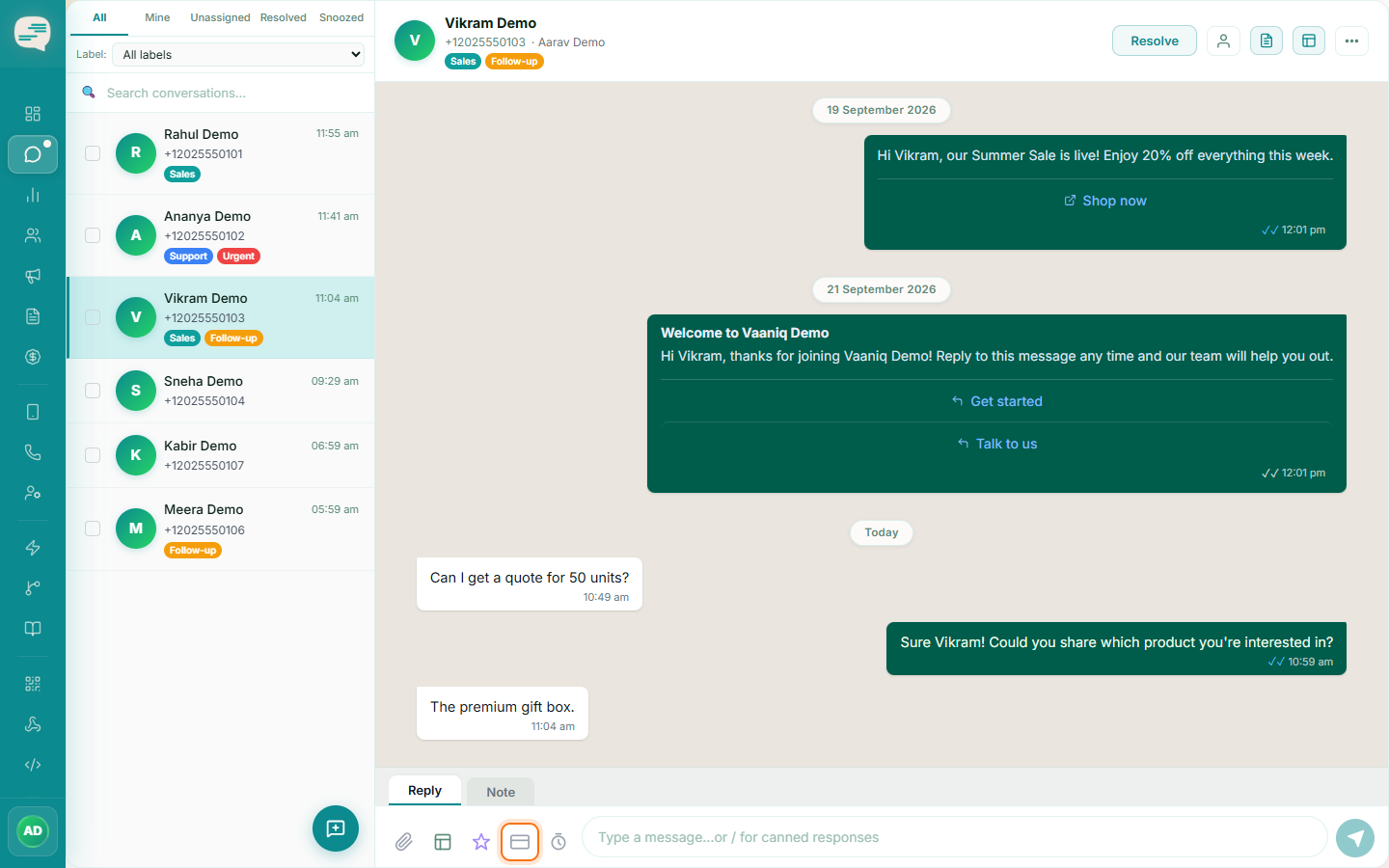
Open the payment link option
Dashboard → Conversations → open a conversation
In any conversation, click the payment link icon in the composer.
2
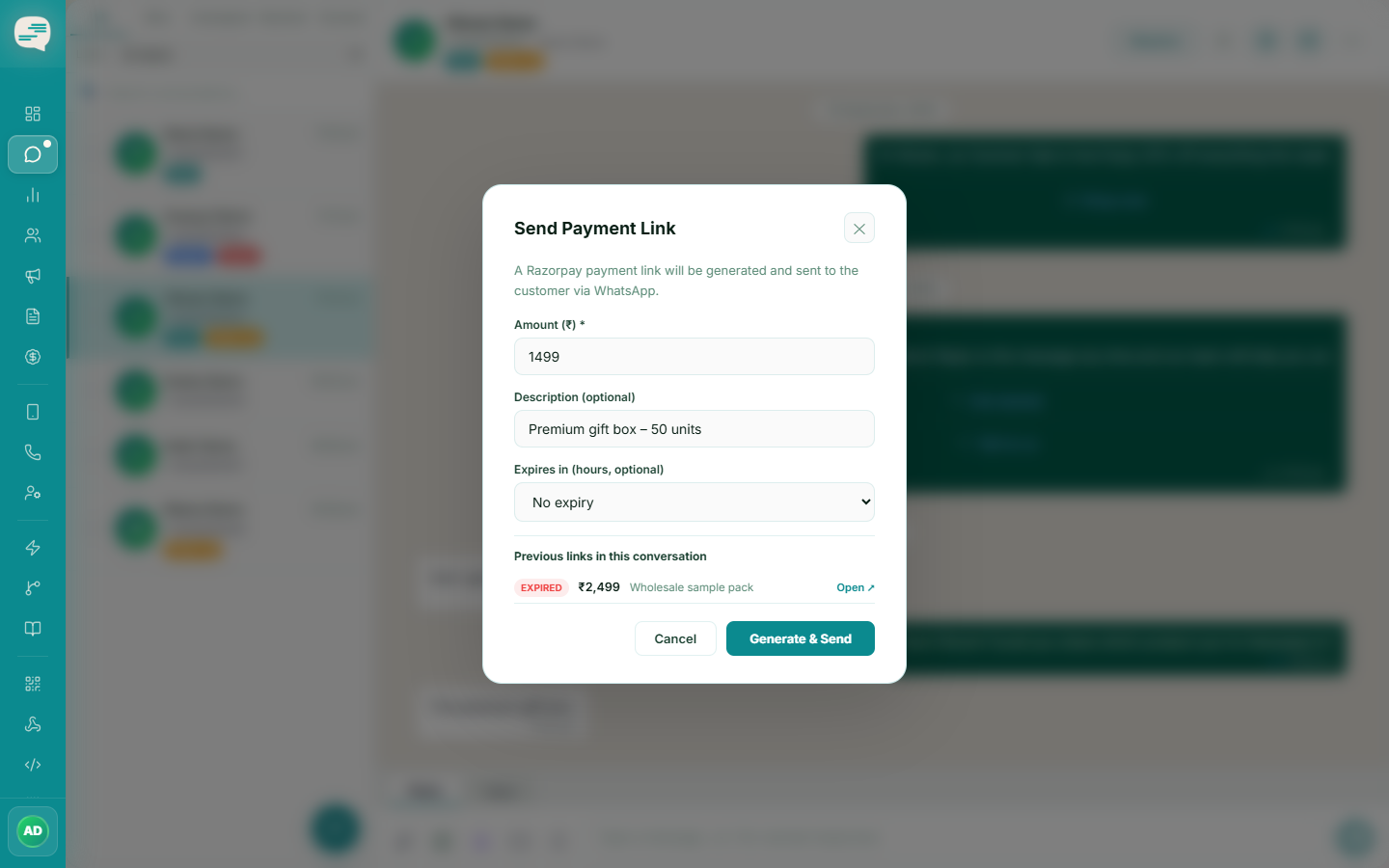
Enter the amount
Enter an amount (minimum ₹1) and an optional description of what it's for.
3
Send
Clicking Send both creates the link and delivers it straight to the customer as a WhatsApp message — there's no separate "create" then "send" step for this flow.
Tip
Money from a payment link settles directly into your own connected Razorpay account — Vaaniq never holds the funds.
Tip
A chatbot flow can also generate and send a payment link automatically as one of its steps.