

How to Add Buttons & User Responses
Send quick-reply buttons or a list, and capture free-text answers from your customer.
Intermediate 4 min read
Tutorial video coming soon
What You'll Learn
In this tutorial you'll learn:
- Add a Send Interactive (buttons/list) step
- Add an Ask Question step and validate the answer type
Step-by-Step Guide
1
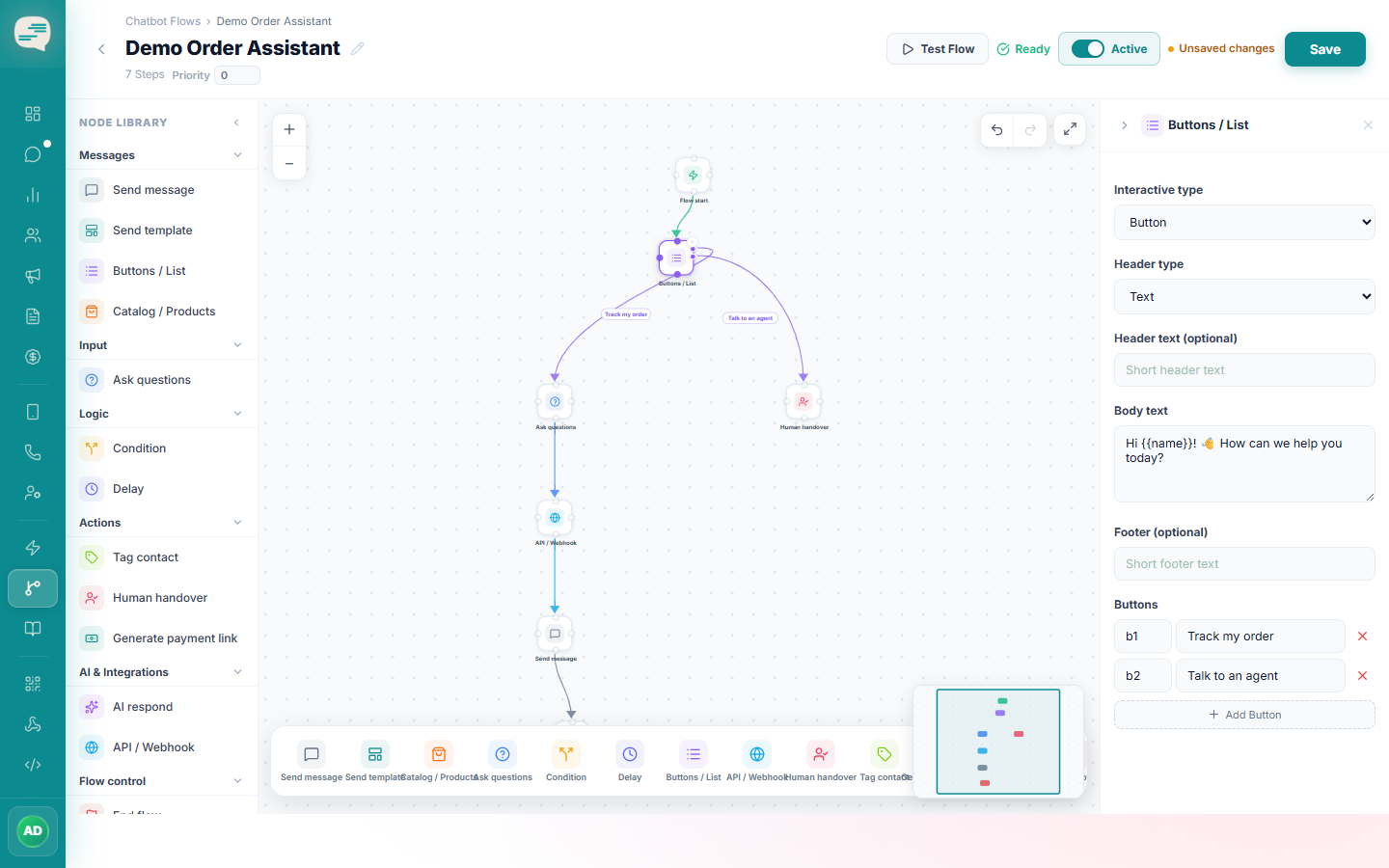
Add a Send Interactive step
Choose buttons or a list, and route each option to a different next step in the flow.
2
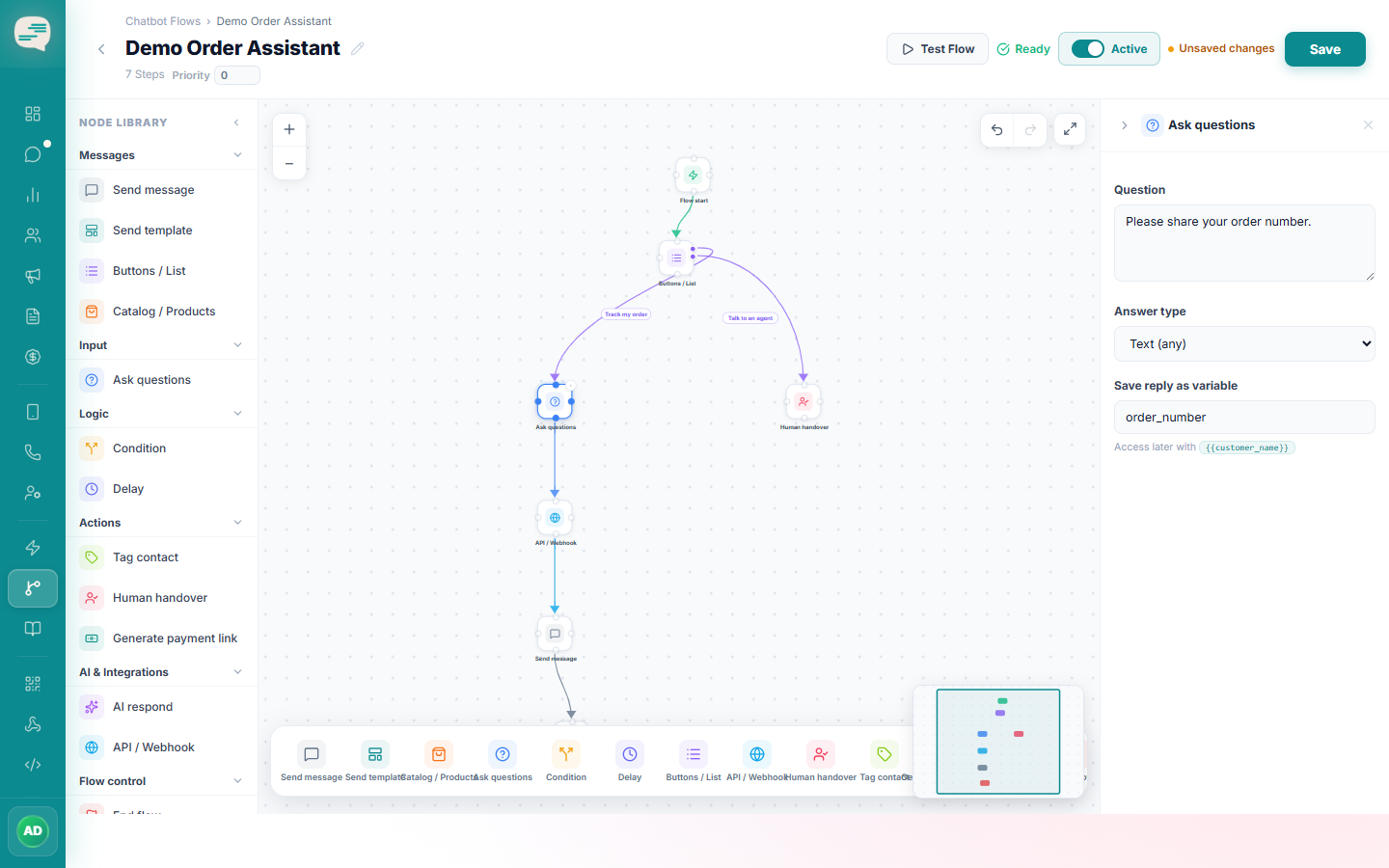
Add an Ask Question step
Write the question, choose an expected answer type (text, email, phone, number, date, or a custom pattern), and give the answer a variable name to store it under.
3
Invalid answers are re-prompted
If the customer's reply doesn't match the expected answer type, the flow automatically re-asks instead of silently accepting bad data.