

How to Schedule a WhatsApp Campaign
Set a campaign to launch automatically at a future date and time instead of sending immediately.
Beginner 2 min read
Tutorial video coming soon
What You'll Learn
In this tutorial you'll learn:
- Schedule a campaign for a future date/time and cancel a scheduled send
Step-by-Step Guide
1
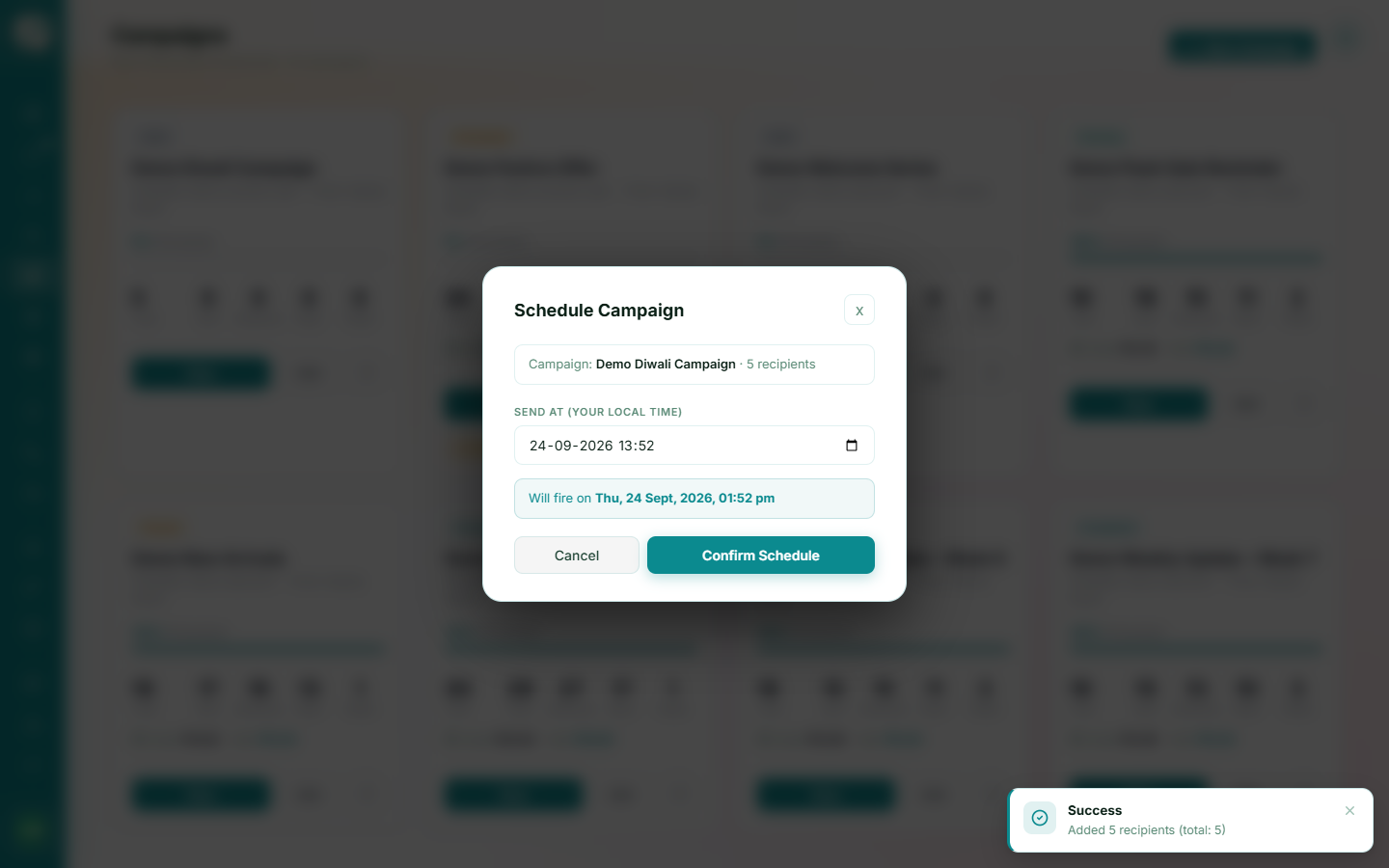
Choose Schedule instead of Send Now
When launching, pick a future date and time using your browser's local timezone.
2
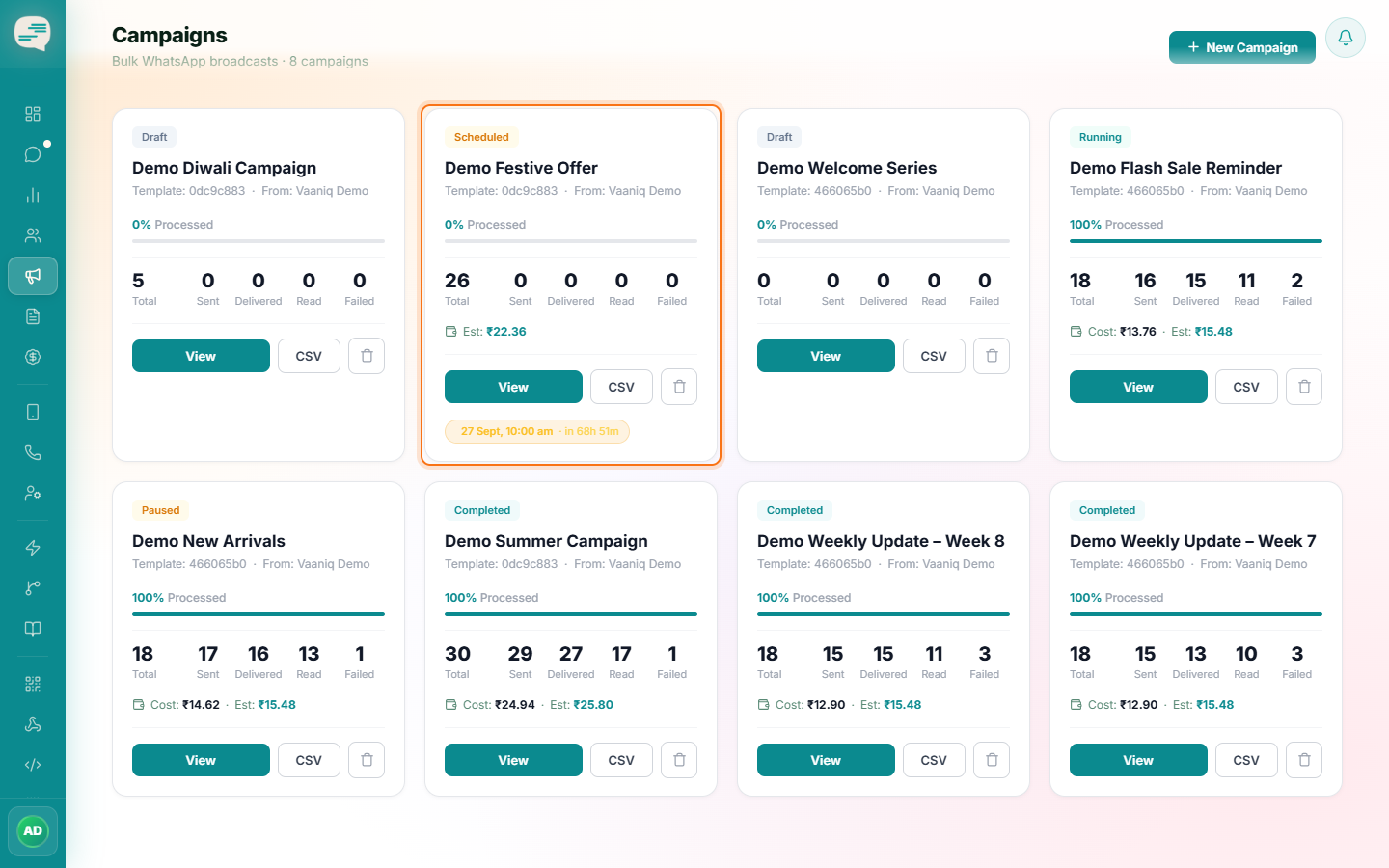
Let it fire automatically
The campaign status changes to Scheduled and it fires on its own at the chosen time — no need to keep the browser open.
3
Cancel if needed
A scheduled campaign can be reverted back to Draft before it fires, if you need to make changes.