

How to Add Website URLs to Knowledge Base
Point a Knowledge Base at a page on your website and let Vaaniq crawl and index its content automatically.
Intermediate 3 min read
Tutorial video coming soon
What You'll Learn
In this tutorial you'll learn:
- Add a URL entry to a Knowledge Base
- Understand how deep the crawl goes
Prerequisites
Before you start:
- A public web page you want the AI to learn from
Step-by-Step Guide
1
Add a URL
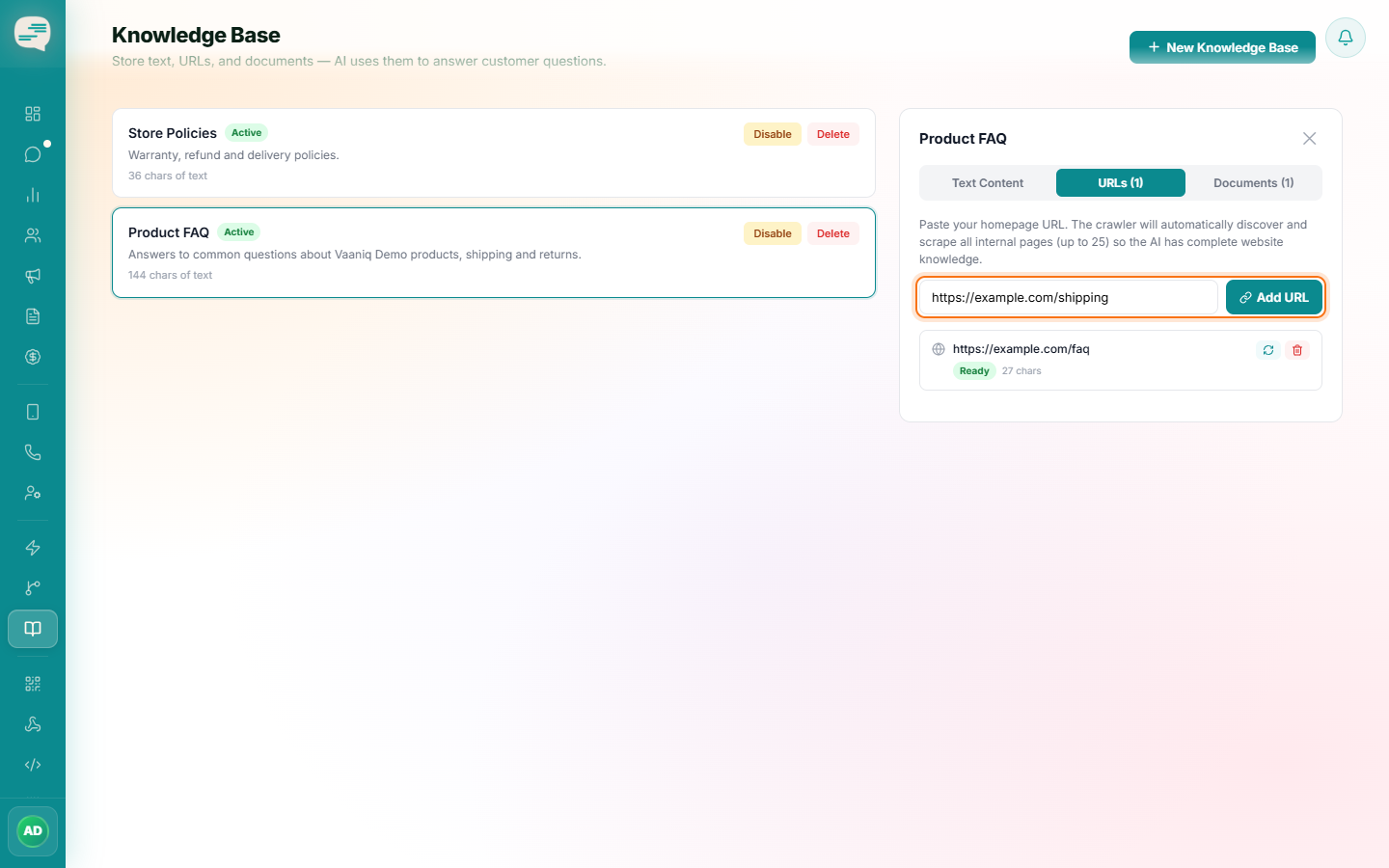
Dashboard → Knowledge Base → open a knowledge base → Add URL
From a Knowledge Base, paste in the page's URL.
2
Let it crawl
Vaaniq fetches the page you gave it, follows the internal links found on that page, and indexes up to 25 pages in total — it isn't a full, unlimited recursive crawl of your whole site.
3
Check status
Like documents, a URL entry shows Pending, Processing, or Ready while it's being crawled and indexed.
4
Refresh it later
Re-adding the same URL re-crawls and refreshes its content in place, rather than creating a duplicate entry.